![Klir_Logo_Colour-B.png]](https://knowledgehub.klir.com/hs-fs/hubfs/Klir_Logo_Colour-B.png?width=181&height=90&name=Klir_Logo_Colour-B.png)
Overview
Smart Capture digitizes operational monitoring at the source. Instead of retyping bench sheet readings into a spreadsheet or another system, your team scans a completed paper form or enters data directly, and Klir extracts, validates, and organizes it automatically. Smart Capture is standard with Klir for Wastewater and available as an add-on for Klir for Drinking Water.
How Smart Capture Fits Into Your Workflow
1. A program admin builds a form in Form Builder, mapping out monitoring locations, parameters, and, for timed rounds, a frequency.
2. The form is printed, and each page carries a unique QR code.
3. Field staff enter data digitally, or scan a completed paper form using the Smart Capture mobile app or the desktop scanning workflow.
4. Klir's OCR engine reads the scan and prefills the form in Data Collected.
5. A reviewer checks any flagged cells, confirms the footer details, and submits the form.
6. Submitted data becomes a structured sample result, ready for compliance tracking and reporting.
Want to Go Deeper?
This article is a quick overview. If you're ready to actually get your hands on Smart Capture, here's where to go next:
• Setting Up & Scanning Forms with Smart Capture — installing the mobile app and scanning your first form.
• Building Forms in Smart Capture — for admins setting up bench sheets in Form Builder.
• Reviewing & Submitting Scanned Data — how to review and submit what Smart Capture captures.
• Smart Capture OCR: Known Limitations & Troubleshooting — handy if a scanned value ever looks off.
Access & Permissions
Smart Capture lives in your Klir sidebar under a Data Collection section, but only if it's turned on for your organization.
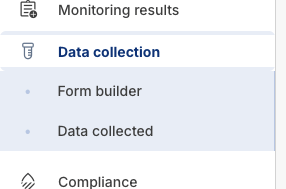
Note: Data Collection is controlled by a tenant-level feature flag, with separate toggles for Wastewater and Drinking Water. If you don't see Data Collection in your sidebar, reach out to your Klir CSM or Klir Support at support@klir.com.
Data Collection contains two areas: Form Builder, where admins create and manage forms, and Data Collected, where teams enter, review, and submit data.
• Access is role-based. You'll need explicit permission to view or edit Form Builder and Data Collected. If a colleague can't see one of these areas, that's a permissions setting, not a bug.
• Once a form is submitted, its structure locks. Locations, parameters, and layout can't be changed after the fact, and unauthorized users can't edit that structure. This keeps your compliance history stable.
• The data inside a submitted form works differently. Submitted records in Data Collected aren't locked, so if something needs correcting later, an authorized user can go back in, edit it, and resubmit.