![Klir_Logo_Colour-B.png]](https://knowledgehub.klir.com/hs-fs/hubfs/Klir_Logo_Colour-B.png?width=181&height=90&name=Klir_Logo_Colour-B.png)
Ready to get your first bench sheet scanned in? Here's everything you need: getting the app installed, printing forms that scan cleanly, and capturing a completed sheet from your phone or your desktop.
Installing the Smart Capture App
Smart Capture is available for both Android and iOS.
• Download it from the Google Play Store (Android) or the Apple App Store (iOS).
• Device requirements: Android 5.0+ or iOS 13.0+, a minimum 5 megapixel camera, and Smart Capture app version 12 or later.
• Grant camera and local storage permissions when prompted.
• Keep an active internet connection on hand. Your device needs one to upload scanned form data.
Signing In
1. Open the Smart Capture app on your mobile device.
2. Enter your registered corporate email credentials to log in.
3. Complete two-factor authentication if it's enabled on your user profile.
Printing Your Forms
A clean, well-printed form is the single biggest factor in a good scan. Before you print:
• Use US Letter (A4 is also supported) on 80–90 gsm white matte paper.
• Print at high quality. Skip draft mode, and print at a minimum of 300 DPI.
• Grayscale or black & white printing is recommended.
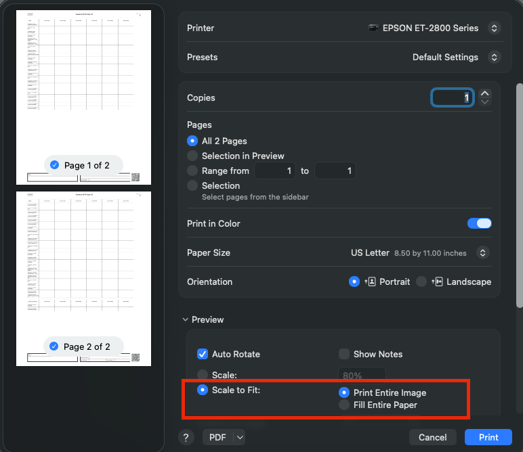
• Make sure “Fit to Page” is enabled so nothing gets cropped, especially the footer QR code.
Capturing a Form with the Mobile App
1. Tap “Start QR Code Scanning” on the home screen and scan the QR code printed at the bottom corner of the form.
2. Review the form details the app pulls up, including Form ID and page count.
3. Tap “Take Photo” to capture the completed form.
4. Once the photo uploads, you'll see an “Upload Successful!” confirmation. Klir's OCR engine takes it from there.
A few capture rules to keep in mind:
• You must take a live photo with the camera. Uploading an existing photo from your gallery isn't supported.
• Hold the camera perpendicular to the page in good lighting, avoiding shadows and glare, and make sure all four corners, the tables, and the footer QR code are visible in frame.
Tip: Need to scan another copy of the same form? Select “Scan with Smart Capture” from the confirmation screen to capture another record without re-scanning the QR code.
Note: If a scan doesn't match a known form layout, for example, due to poor lighting or a missing footer, the form will still load, but with empty values and a warning banner. Article 4 walks through exactly what to do when that happens.