![Klir_Logo_Colour-B.png]](https://knowledgehub.klir.com/hs-fs/hubfs/Klir_Logo_Colour-B.png?width=181&height=90&name=Klir_Logo_Colour-B.png)
Note: Only an Organization Administrator user type to create users. No access to the Administration area? Check with your Admin.
Not all access changes are the same. Someone leaving the organization needs a different response than someone who's just changed teams. This article covers both and helps you pick the right action; nothing important gets lost along the way.
Scenario 1: Someone's left the organization
When a team member moves on, you have two options: Deactivate or Delete.
We almost always recommend Deactivate. Here's why:
| Deactivate | Delete | |
|---|---|---|
| Stops them from logging in | ✅ | ✅ |
| Preserves audit trail & historical records | ✅ | ❌ |
| Reversible | ✅ | ❌ |
For water utilities, your audit trail matters — both for compliance and for keeping your operational records clean. Deactivating keeps everything intact. Deleting is permanent and can't be undone.
💡 Save Delete for situations where you're certain the user's history never needs to be referenced again.
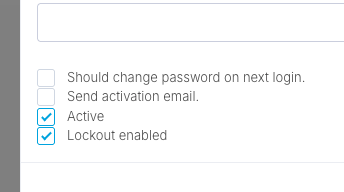
To deactivate, find the user in the list, open their profile via the three-dot menu under Actions -> Edit, and uncheck the Active field. Save, and they're out.
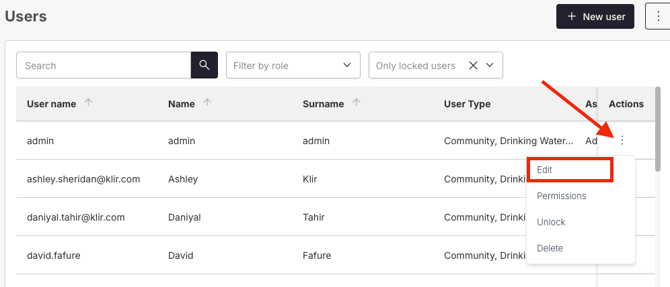
To delete a user, select Delete from the three-dot menu for the user.
Scenario 2: Their role has changed
If someone's moved teams, changed responsibilities, or just needs less access than before no need to deactivate. Just adjust their permissions via the three dot menu -> Edit. Navigate to the Roles tab.
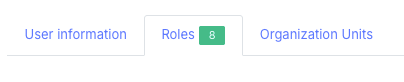
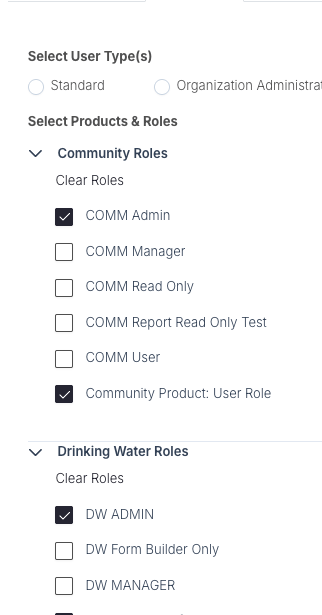
Option 1 — Remove roles directly Open their profile and unassign any roles they no longer need.
Option 2 — Update their Organisation Unit membership Remove them from any department or division that's granting access they shouldn't have anymore.
Option 3 — Switch them to Read Only A clean way to keep someone's account active while removing their ability to make changes. Handy for role transitions, returning auditors, or anyone referenced in historical records.
Quick reference
| Situation | Recommended action |
|---|---|
| Left the organization | Deactivate (or Delete if history is irrelevant) |
| Changed roles or teams | Remove or swap roles / update Organisation Units |
| Needs view access only | Assign Read Only role |
| Temporarily needs no access | Deactivate (reactivate when ready) |
And that's user access sorted. 🎉 For the full picture on how access works in Klir, head back to User Roles in Klir or Adding a New Users to Your Klir Platform.