![Klir_Logo_Colour-B.png]](https://knowledgehub.klir.com/hs-fs/hubfs/Klir_Logo_Colour-B.png?width=181&height=90&name=Klir_Logo_Colour-B.png)
Note: Only Organisation Administrator user type to create users. No access to the Administration area? Check with your Admin.
It's worth thinking through what the new user will need to do in Klir before diving in — getting their roles right from the start saves a lot of back-and-forth later. Not sure how roles work? Start with How Permissions Work first.
Let's Get Started!
Step 1 — Go to Administration > Users
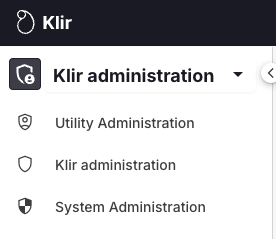
Use the left-hand menu to open the Administration area, then click the Users tab. You'll see a list of everyone already set up.
Click + New User on the right to open the form.

Step 2 — Fill in the three tabs
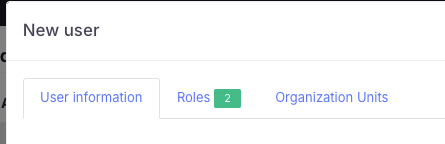
Tab 1 — User Details
Fields marked with a red asterisk (*) are mandatory. The key ones to know:
| Field | Notes |
|---|---|
| Username | Must match their email address if your organization uses SSO (if using SSO) |
| Send activation email | Tick this so they get a setup link |
| Active | Must be checked for them to log in |
| Two factor authentication | Adds an extra layer of security at login |
| Lockout enabled | Use this to block access when needed |
Hit Save when done.
Tab 2 — Roles
This is where you decide what they can do. Users can hold more than one role — permissions compound across everything assigned.
Roles for your organization might differ. Below is just an example.
| Role | Access |
|---|---|
| Admin (DW / WW / ENV) | Administration areas — permit config, tags, data imports |
| Permit Manager (DW / WW / ENV) | Create and manage permits and tasks |
| Read Only (DW / WW / ENV) | View only — no creating or editing |
Need something custom? Reach out to your Klir Customer Success contact and we'll tailor it to your team.
Tab 3 — Organization Units
Optionally add them to a department or division. They'll inherit whatever roles that group has — great for onboarding several people at once.
Step 3 — Done! 🎉
Once saved, they'll receive their activation email and be ready to go. To edit a user later, find them in the list and click the three-dot menu under Actions.
Ready to handle someone leaving or needing less access? Head to Removing or Reducing Klir User Access.