![Klir_Logo_Colour-B.png]](https://knowledgehub.klir.com/hs-fs/hubfs/Klir_Logo_Colour-B.png?width=181&height=90&name=Klir_Logo_Colour-B.png)
SmartCapture
SmartCapture enables structured data collection through configurable forms, OCR-based scanning, and digital data entry. This article outlines all features across Access & Permissions, Form Builder, Data Collected, Scanning & OCR, and SmartCapture mobile app usage.
1. Access & Permissions
Feature Availability
- Controlled by tenant-level feature flags.
- Separate toggles exist for WW and DW products.
- When enabled, a Data Collection section appears in the sidebar containing:
- Form Builder (create/manage forms)
- Data Collected (enter/review form data)
- Form Builder (create/manage forms)
User Permissions
- Access is role-based.
- Users must have permission to view and edit Form Builder and Data Collected.
- Completed forms are locked:
- The form structure cannot be changed after submission.
- Unauthorized users cannot edit submitted forms.
- The form structure cannot be changed after submission.
2. Form Builder
2.1 Form Initialization
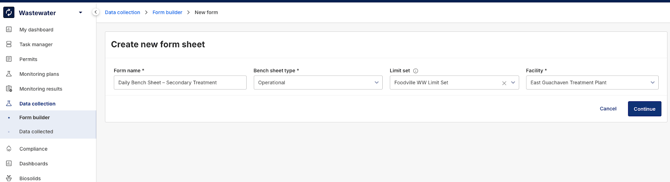
Users begin by selecting Create New Form, then provide:
- Form name
- Bench sheet type
- Facility
- Optional: Limit sets
After validation, the system opens the configuration workflow.
2.2 Group Configuration
Forms are structured into groups:
Group Types
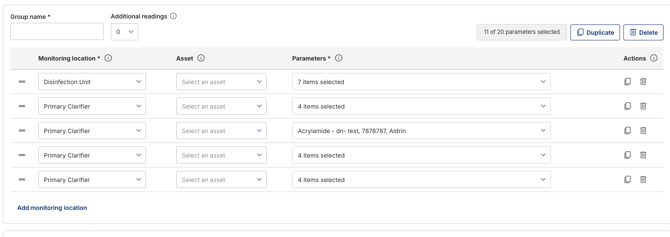
- Location-based Group
For sampling/measurement required at specific monitoring locations.
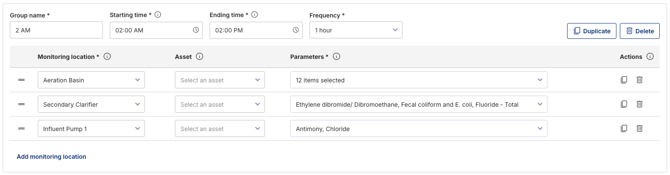
- Time-based Group
For measurements at a location–parameter combination on a timed frequency
(start time → end time → frequency; all within a single day).
Group Configuration Capabilities
Users can:
- Select monitoring location(s) and asset(s).
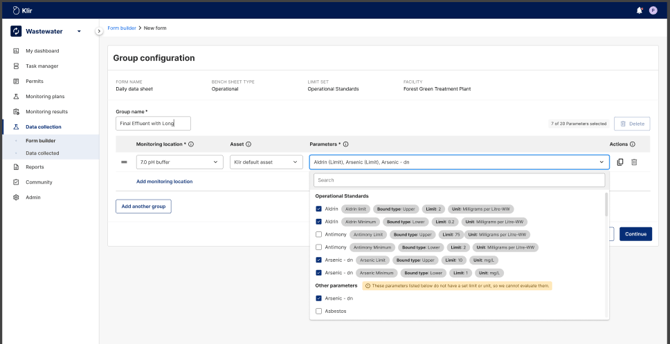
- Add parameters via a searchable list.
- Parameters with limit sets → system evaluates values against limits.
- Parameters without limit sets → captured without evaluation.
- Parameters with limit sets → system evaluates values against limits.
- (Time-based) Define start time, end time, and frequency.
- Add, duplicate, and delete rows.
- Drag-and-drop to reorder rows.
- Create, duplicate, or delete entire groups.
System Validations
Before moving forward, the system checks:
- No duplicated parameters (columns).
- Row and column counts fit within page limits.
- All groups fit on a single portrait-formatted page.
- Required fields completed.
- Group name length constraints.
- Parameter selection limits - Only 11 parameters may be selected per group.
2.3 Layout Preview & Adjustments
Automatic Layout Generation
After configuration, the system renders a preview.
Location-based Groups
- Rows = locations
- Columns = parameters
- Unconfigured cells display “X”.
Time-based Groups
- Same structure, with time slots generated from frequency inputs.
User Options in Preview
- Reorder blocks, columns, and rows.
- Return to the previous steps to adjust the configuration.
- Submit the final form.
QR Code Generation
- Displayed in layout preview and on the data-entry page.
- Scanning provides mobile/desktop access.
- If the form is incomplete, scanning is blocked with an explanatory message.
A loading spinner appears while the system prepares the layout.
2.4 Form Submission & Management
Form Status & Table Features
Users may submit or save as draft.
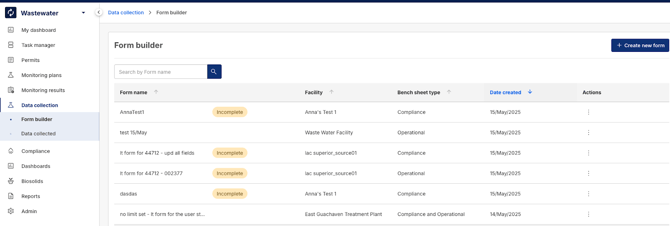
All forms appear in the Form Builder table with status indicators.
The list supports:
- Search by form name
- Sorting by name, date, facility, bench sheet type
Editing Forms
- Incomplete forms can be reopened and modified.
- The system preserves configuration and layout.
- Navigating between steps is supported.
- Any invalidated selections are automatically updated or removed.
- Actions available:
- Delete (incomplete forms only)
- Copy form
- Delete (incomplete forms only)
Export to PDF
- Available only for submitted forms.
- PDF includes:
- Final layout
- All groups and parameters
- Metadata
- Final layout
- Not available for drafts/incomplete forms.
- In the most recent version, PDFs cannot contain more than 11 columns. All validations related to the column limit happen on the Configuration step. A form cannot be submitted (and exported to PDF) if it exceeds 11 columns.
3. Data Collected
3.1 Access
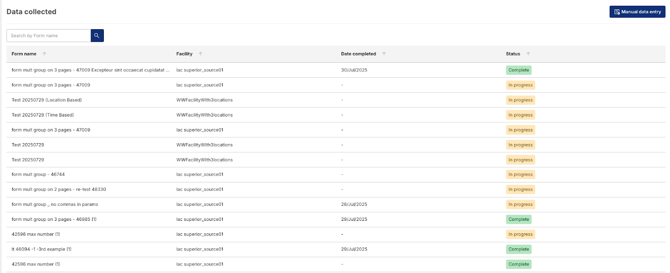
The Data Collected section enables data entry into submitted forms.
Ways to access a form:
- “Enter Data” from Form Builder
- From Data Collected table (with search and pagination)
- Direct link from email notification after a successful scan
- QR-code scan from printed form
3.2 Data Entry & Draft Handling
Users can:
- Enter integers or decimals (up to 11 characters).
- Save a partially filled form as a draft.
- Fill footer fields (Operator, Date, Notes).

When opened from a scan:
- Original layout is restored.
- OCR-prefilled values populate table cells and footer.
- Expected formats:
- Date: MM/DD/YYYY
- Time: HH:MM AM/PM
- If AM/PM omitted → interpreted as 24-hour format.
- If AM/PM omitted → interpreted as 24-hour format.
- Date: MM/DD/YYYY
Users review, validate, and submit the form.
4. Scanning & OCR
4.1 Overview
Forms can be scanned from:
- Desktop/web
- SmartCapture mobile app
OCR extracts:
- Table values
- Footer (Operator, Date, Notes)
OCR handles mixed group layouts.
If scanning fails (QR unreadable / OCR failure):
- Inline feedback is shown.
- No record is created until a valid scan is processed.
After successful OCR:
- Email sent with link to scanned form.
- Appears in Data Collected alongside manually submitted forms.
If page contains unrelated content or missing footer:
- Form loads with empty values.
- Yellow warning banner displayed.
4.2 Desktop/Web Scanning Workflow
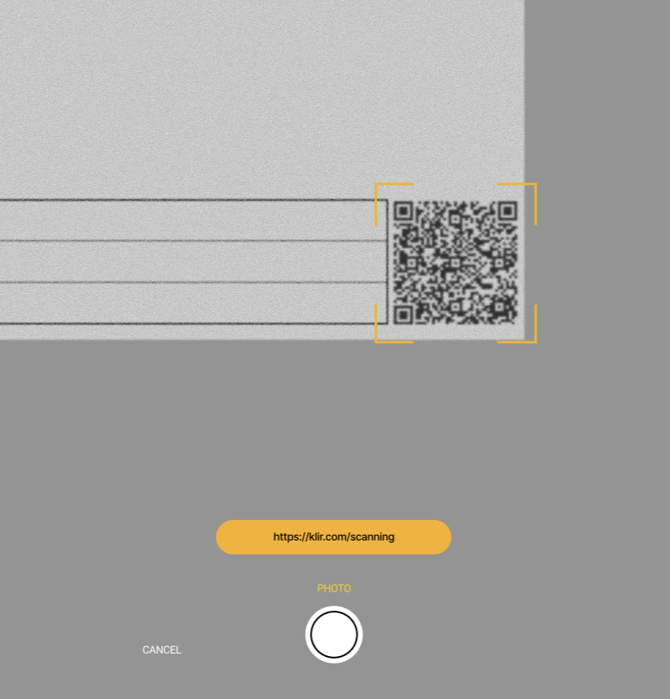
- Scan the QR code to open the scanning screen.
- Capture form image following on-screen guidance.
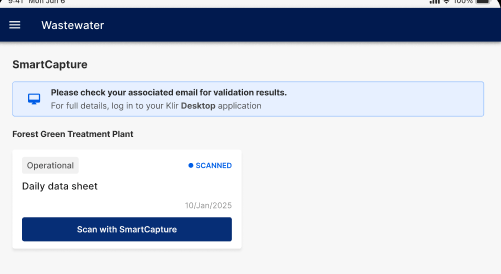
- After scanning, the confirmation screen shows “Scan with SmartCapture”.
- Multiple scans of the same form are allowed; each creates a new record.
4.3 SmartCapture Mobile App Workflow
Login & Access
- User logs in with email credentials.
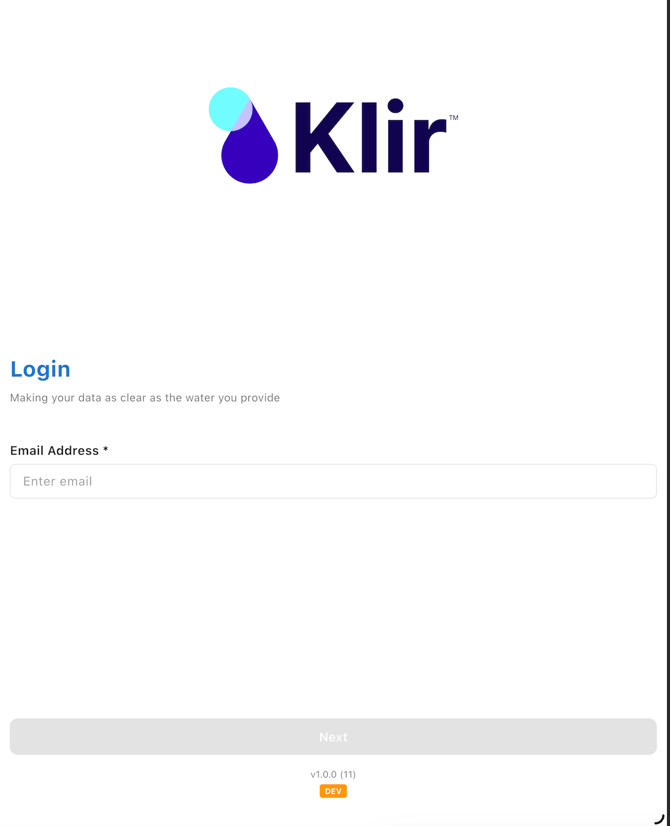
- Scanning begins by capturing the printed form’s QR code.
Capture Requirements
- Form details shown before capture.
- If the form is incomplete or >1 page (current limitation) → user cannot proceed.
- After capture, images upload automatically.
- OCR runs as described above.
Post-Scan
- Confirmation screen is shown after processing.
- “Scan with SmartCapture” allows rescanning without re-scanning the QR code.
- Each rescan becomes a separate record.
5. SmartCapture App – Installation & Requirements
Device Requirements
- Android 5.0+, iOS 13.0+
- Minimum 5 MP camera
- Minimum app version: SmartCapture v12
Permissions
- Camera access
- Storage access
Connectivity
- Internet connection required for uploads.
Availability
- Android (Play Store)
- Apple App Store
(Links provided in the source but removed here for Knowledge Hub formatting; can be added if allowed.)
6. Printing & OCR Considerations
6.1 User Constraints
- Only new photos allowed; no gallery uploads.
6.2 Paper & Printing Requirements
- US Letter recommended; A4 supported.
- 80–90 gsm white matte paper.
- High-quality printing; no draft mode.
- Minimum 300 DPI.
- Grayscale / Black & White recommended.
- Ensure Fit to Page is enabled.
6.3 Capture Best Practices
- Avoid poor lighting, blur, and shadows.
- The photo must be perpendicular to the page.
- Avoid heavy tilt; a small tilt can be auto-corrected.
6.4 Known OCR Limitations
Numeric Formatting
- Fractions & scientific notation not supported.
- Leading zeros stripped (012 → 12).
- Trailing zeros stripped (1.0 → 1).
- Positive signs removed (+3 → 3).
- Values starting with a decimal lose the leading zero (.75 → 75).
- % signs not recognized.
- Values crossing cell borders may be cut.
- Multiple separators cause misreads.
- Several known symbol misreads (examples):
- ° → 0
- ! → 1
- ? → 2
- between numbers → 4
- between numbers → 4
- " → 11
- B → 13
- Z → 2/7
- S → 5
- F → 7
- ° → 0
Footer Recognition
- Accuracy lower than the main table.
- Issues arise if text touches borders or labels.
- Corrected/overwritten values may not be recognized.
General Accuracy
- ~90% accuracy in most scenarios.
- Common errors:
- Decimal separators (0.09 → 9).
- Merged crossed-out values.
- Single strokes read inconsistently.
- Identical values recognized differently.
- Decimal separators (0.09 → 9).
7. Validation & Feedback
During data entry:
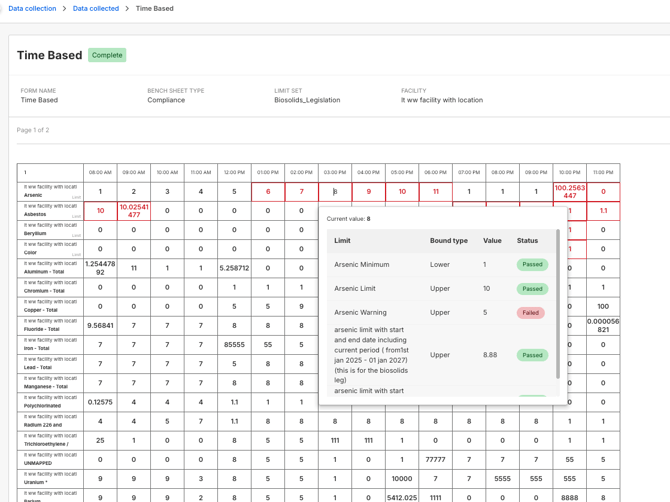
- Required and out-of-limit fields highlighted.
- Hovering shows limited details.
- Unsaved changes prompt a warning on exit.
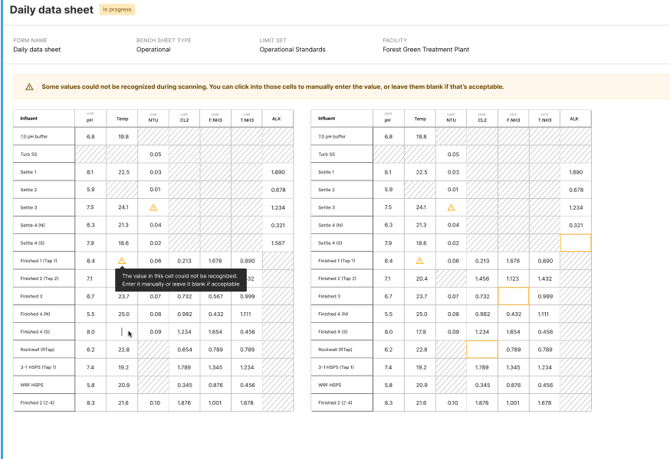
OCR Confidence Flags
- Cells with low OCR confidence are marked with a yellow triangle.
- Tooltip describes the issue.
- The user can edit the cell; the flag clears on validation.
8. Form Submission & Result Handling
Submission
- The submit button is enabled when all validations pass.
- User must acknowledge the confirmation checkbox.
- Submitted forms:
- They are not locked (can be edited and resubmitted).
- Generate sample results for compliance and reporting.
- They are not locked (can be edited and resubmitted).
Multi-Page Forms
- Supported across data entry, review, and PDF export.
- Layout preserved throughout.