![Klir_Logo_Colour-B.png]](https://knowledgehub.klir.com/hs-fs/hubfs/Klir_Logo_Colour-B.png?width=181&height=90&name=Klir_Logo_Colour-B.png)
When records fail to ingest, Klir generates an Error Report to help you identify exactly what went wrong and where to focus your troubleshooting efforts.
Think of the Error Report as your roadmap to resolution—it highlights the records that could not be imported and provides details about why those records failed validation.
Before making any corrections to your source data, take a few moments to review the report and familiarize yourself with the errors that have been identified.
Suggested Screenshot
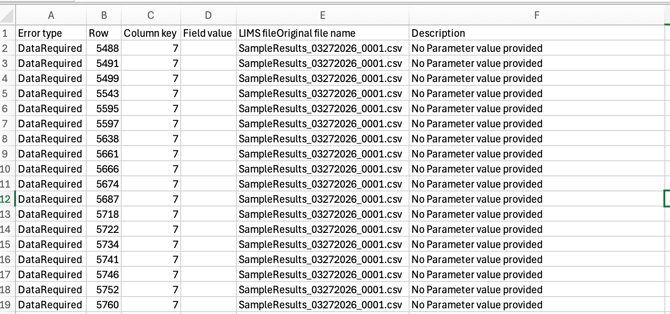
Depending on the type of issue encountered, the Error Report may include information such as:
|
Column |
Description |
|
Row Number |
Identifies the row in the source file where the error occurred. |
|
Error Message |
Explains why the record could not be imported. |
|
Field Name |
Identifies the field associated with the error, when applicable. |
These details can help you quickly locate the affected record in your source file and determine what needs to be corrected.
How to Use the Error ReportOnce you've opened the report:
- Locate the affected row in your source file.
- Review the Error Message to understand why the record failed ingestion.
- Identify the field or value that needs to be corrected.
- Update the source data as needed.
- Repeat this process for any additional errors listed in the report.
- Once all errors have been addressed, re-submit the file through your SFTP integration.
Tip: A single record may contain multiple errors. Before re-submitting your data, review each error carefully to ensure all reported issues have been resolved.

Now that you know how to read the Error Report, the next step is determining what each error means and how to resolve it.
Continue Reading
- Understanding Common Error Types - Review common ingestion errors and the recommended steps for resolving them.
- Re-Submitting Corrected Data - Learn how to successfully re-submit corrected files and verify successful ingestion.
- Need Additional Help with Data Ingestion Errors? - Still stuck? Learn how to reach Klir Support and what information to include when contacting our team.
- Resolving SFTP Data Ingestion Errors (Overview) - Get a quick overview of the error resolution process and available resources.
- How to Review Data Ingestion Errors – Learn where to find Error Reports and view ingestion issues within Klir.