![Klir_Logo_Colour-B.png]](https://knowledgehub.klir.com/hs-fs/hubfs/Klir_Logo_Colour-B.png?width=181&height=90&name=Klir_Logo_Colour-B.png)
Once you have reviewed your Error Report, the next step is to identify what type of issue prevented the data from being ingested.
The Error Report will list the affected records and provide a reason for each failure. Some errors can be resolved by updating the source file, while others may require confirming configuration in Klir or reaching out to Klir Support for help.
Use the sections below to understand what each common error means and what action to take next.
Jump To
- Missing Required Information
- Invalid Reference Value
- Invalid Date Format
Missing Required Information
What This Means
One or more required fields were not provided in the source data. Klir needs these values in order to successfully import and associate the record.
Common Examples
- Missing Sample ID
- Missing Location ID or Client ID
- Missing Collection Date or Received Date
- Missing Result Value
- Missing Parameter
How to Resolve
- Review the affected record in your source file.
- Add the missing information.
- Save the updated file.
- Re-submit the corrected data through the SFTP integration.
Invalid Reference Value
What This Means
The value provided in the source data does not match an existing Parameter, Unit, or Method configured within Klir.
This error commonly occurs when:
- A value is misspelled
- Naming conventions differ between the source system and Klir
- A new Parameter, Unit, or Method has been introduced in the source system
- The source value contains formatting differences that Klir does not recognize
How to Investigate
Start by reviewing the value identified in the Error Report. Then, check whether that value already exists in Klir by navigating to the appropriate area:
- Admin → Monitoring Management → Parameters
- Admin → Monitoring Management → Units
- Admin → Monitoring Management → Methods
Once you know whether the value exists in Klir, use one of the resolution options below.
Resolution Option 1: Correct the Source Data
Use this option when an equivalent Parameter, Unit, or Method already exists in Klir, but the value in the source file is incorrect or does not match the configured value.
|
Source Value |
Existing Klir Value |
|
Nitrate-N |
Nitrate Nitrogen |
|
mg/Litre |
mg/L |
|
Potential of Hydrogen |
pH |
After correcting the source data:
- Save the updated source file.
- Re-submit the file through the SFTP integration.
- Confirm successful ingestion after processing.
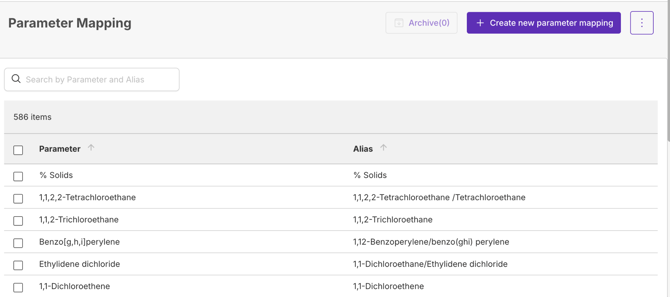
Resolution Option 2: Create an Alias
Use this option when the source value is a valid variation of an existing Parameter or Unit and will continue to be received from the source system.
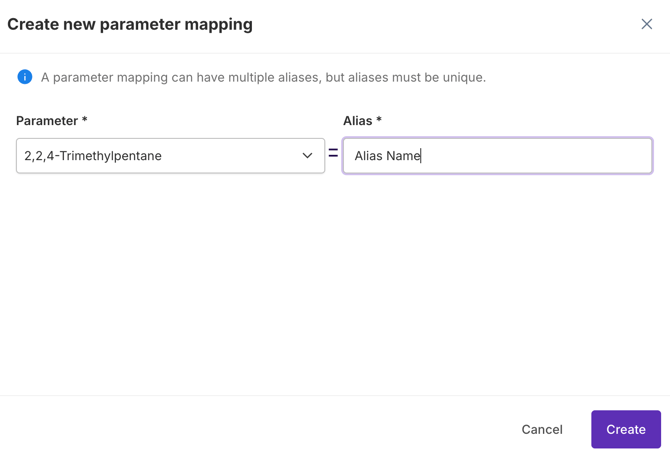
Aliases allow Klir to recognize alternate names and automatically map them to an existing value. This can help reduce repeated errors when the source system uses a different naming convention than Klir.
To create an alias:
- Navigate to one of the following:
- Admin → Monitoring Management → Parameter Mapping
- Admin → Monitoring Management → Unit Mapping
- Create a mapping between the source value and the existing Klir value.
- Save the mapping.
- Re-import the data.
Example: If the source system sends “NO3-N” and Klir uses “Nitrate Nitrogen,” a mapping can be created so future imports are automatically recognized.
(Parameter mapping page)
(Parameter mapping workflow)
Resolution Option 3: Request a New Value
Use this option when the Parameter, Unit, or Method does not exist in Klir and is not equivalent to an existing configured value.
Examples may include:
- A newly introduced laboratory parameter
- A new reporting unit
- A new analytical method
In these situations:
- Contact your Customer Success Manager or Klir Support.
- Provide the new Parameter, Unit, or Method that needs to be added.
- Wait for confirmation that the value has been added to your environment.
- Re-submit the data for ingestion.
Note: The new value must be configured within Klir before the affected records can be successfully imported.
Invalid Date Format
What This Means
The date provided in the source data is not formatted according to the requirements configured for your SFTP integration.
Because integrations can be configured differently, valid date formats may vary from one Klir environment to another.
How to Resolve
- Review the date value identified in the Error Report.
- Confirm that the date is formatted according to the requirements of your integration.
- Update the date value in the source file.
- Save the corrected file.
- Re-submit the data through the SFTP integration.
Note: Date format requirements are established during the implementation and integration setup process and may differ between customers. If you are unsure what date format your integration expects, please contact Klir Support at support@klir.com and we will be happy to help confirm the correct format.
What Should I Do Next?
Once you have identified and corrected the errors in your source data, the next step is to re-submit the file through your SFTP integration.
Continue Reading
- Re-Submitting Corrected Data - Learn how to successfully re-submit corrected files and verify successful ingestion.
- Resolving SFTP Data Ingestion Errors (Overview) - Get a quick overview of the error resolution process and available resources.
- Need Additional Help with Data Ingestion Errors? - Still stuck? Learn how to reach Klir Support and what information to include when contacting our team.
- Understanding the Error Report - Learn how to interpret the information included in the Error Report and identify the records requiring correctio