![Klir_Logo_Colour-B.png]](https://knowledgehub.klir.com/hs-fs/hubfs/Klir_Logo_Colour-B.png?width=181&height=90&name=Klir_Logo_Colour-B.png)
The Task Manager is the primary hub for tracking operational work. Tasks are dynamically generated based on monitoring requirements and include detailed subtasks, descriptions, and assignees to maintain strict accountability.
Locating your Tasks
Tasks are located on Klir's Live Tasks page, accessible through the Task Manager in the Navigation menu.
View Options
You can choose from three different view formats based on your preference:
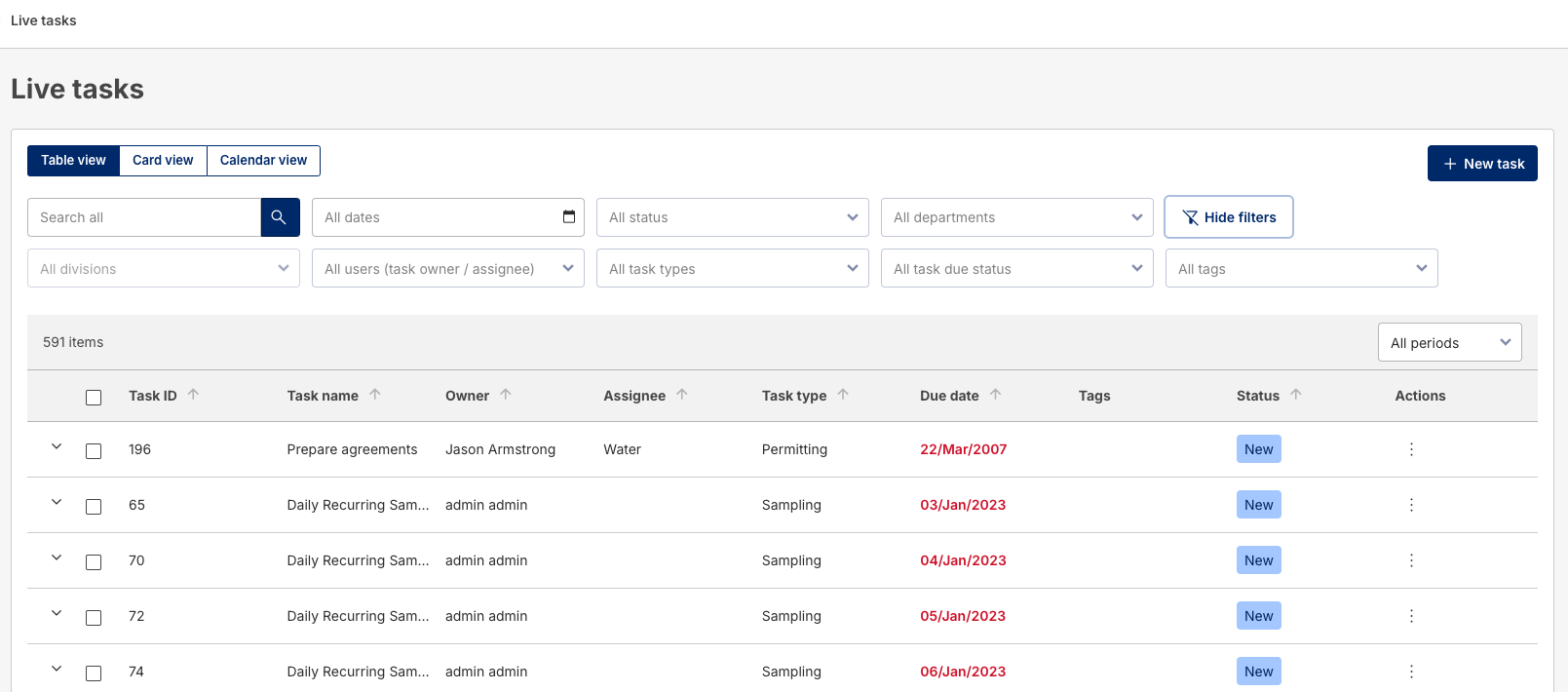
- Table View
- Displays tasks and sub-tasks in a table or chart format.
- Only main tasks are visible by default.
- To view sub-tasks, click the right-down arrow icon next to any task.
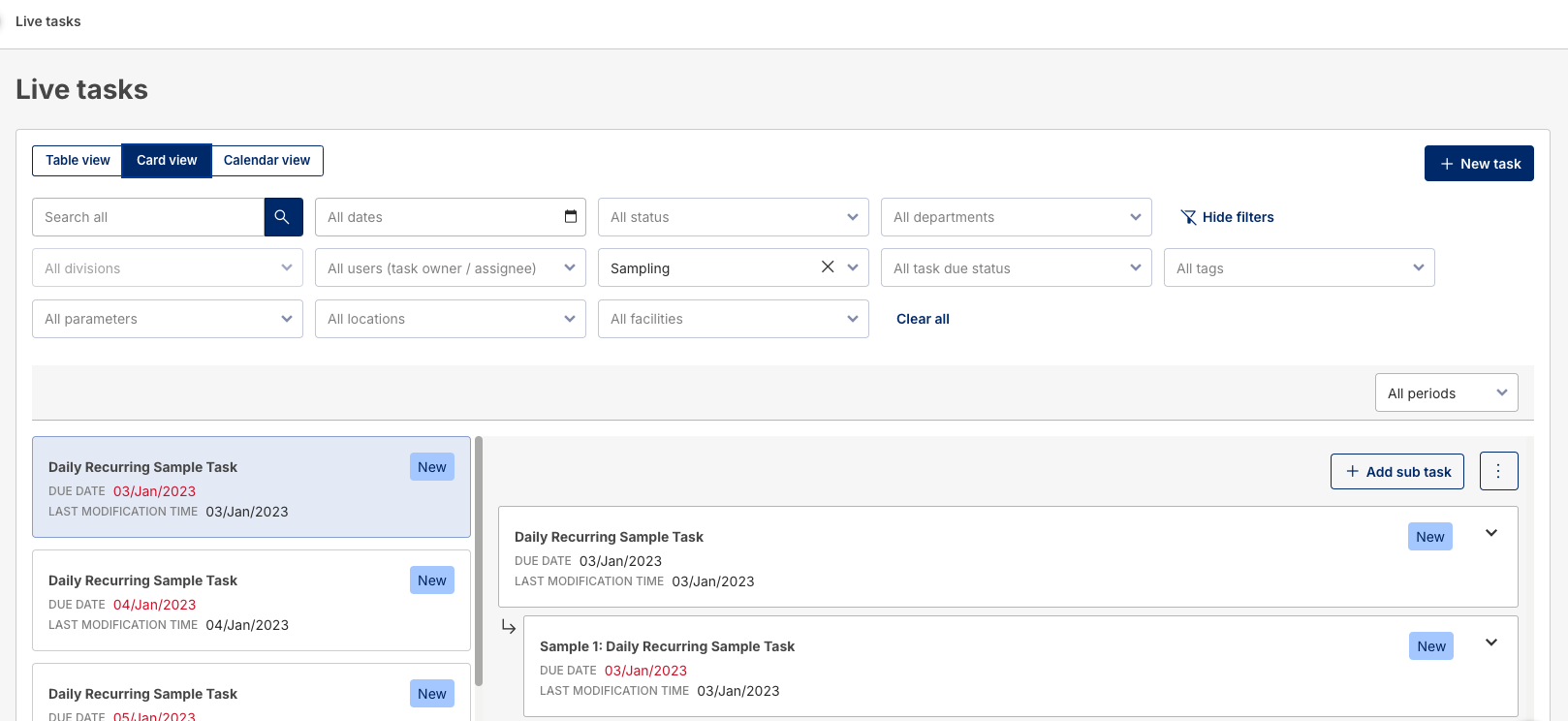
- Card View
- Displays tasks and sub-tasks in a clickable card format.
- Clicking on a task or sub-task shows details, similar to the Task Details page. You can also navigate directly to the Task Details page by clicking the View Task Page area.
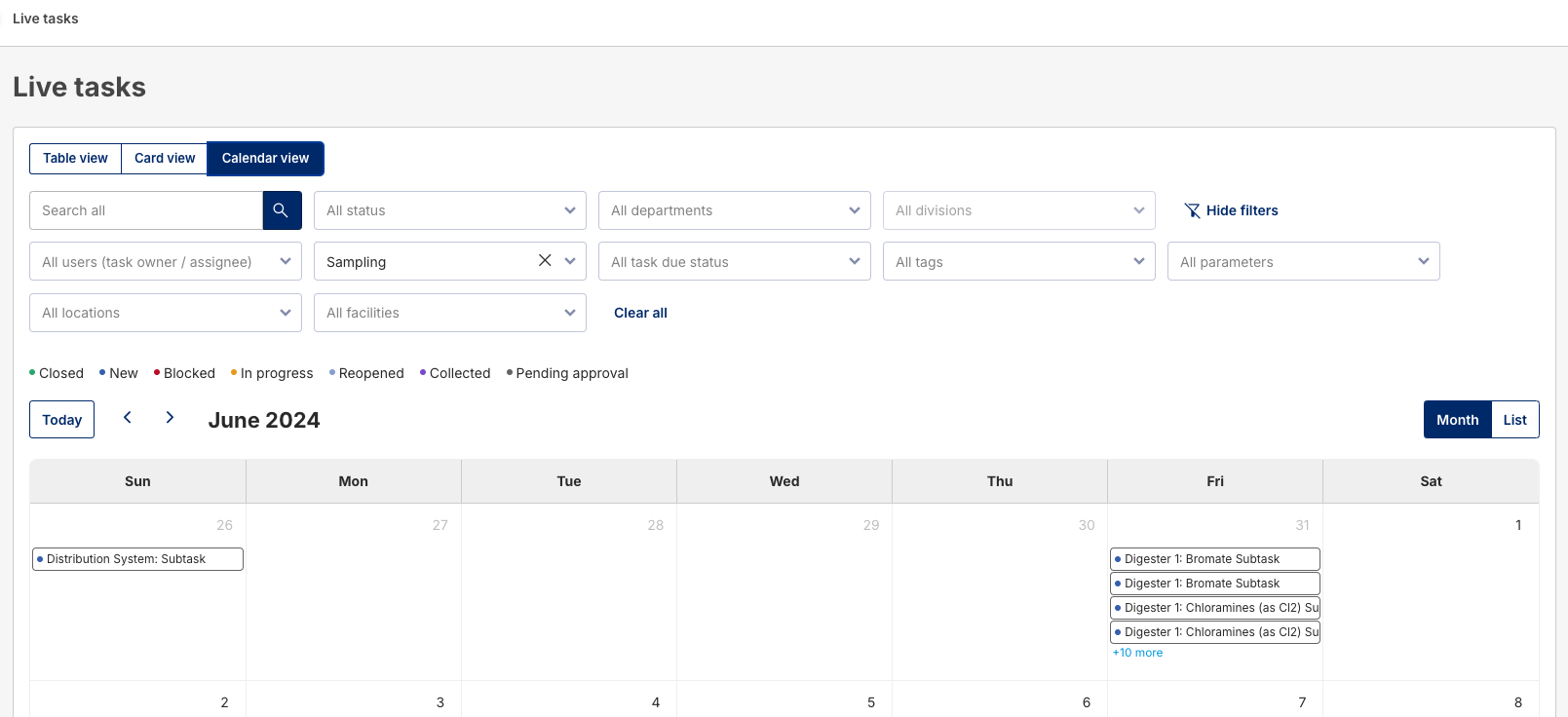
- Calendar View
- Displays tasks on a calendar.
- Clicking on a task shows task details.
- You can view detailed task information by using the eye icon.
- Unique Feature: Drag and drop tasks to different dates to automatically update their due dates.
Reading Task Details
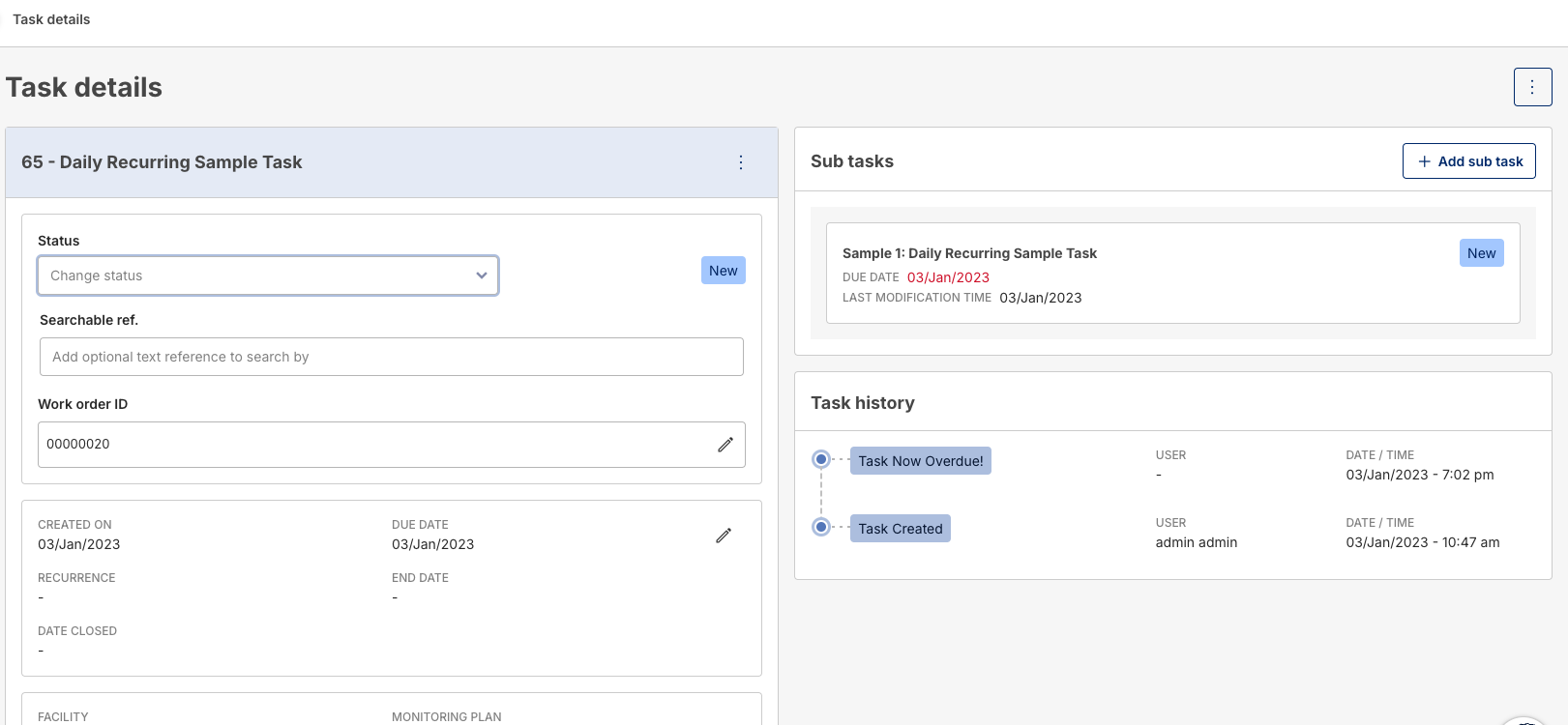
The Task Details page shows all relevant information for a task or sub-task.
Task Details Sections:
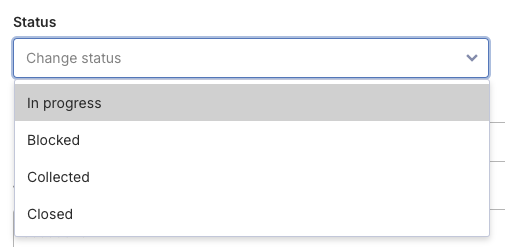
- Status
- Shows the current status of the task. Status options include:
- In Progress
- Blocked
- Collected
- Closed
- Shows the current status of the task. Status options include:
- Searchable Reference
- Optional field for adding text that makes it easier to search for a task.
- Date Area
- Displays the following date-specific information:
- Created On
- Due Date
- Date Closed (if applicable)
- Recurrence date (if applicable)
- Displays the following date-specific information:
- Permit Area
- Displays information about any permit applied to the task.
- Owner and Assignee
- Owner: The task's primary responsible party.
- Assignee: The person or group responsible for the task.
- You can assign tasks to a specific individual or a group. Assigning to a group will notify all group members of the task.
- Tags and Geotags
- Tags: Pre-set text values to help with task searches.
- Geotags: GIS URL information to display map location images, if applicable.
- Description
- The field for adding additional task details as text.
- Attach File
Attach files related to the task here. - Comments
- Leave comments or notes for collaborators. Use the @ symbol to tag users, which will send them an external email notification with a clickable link to the task.
Example: “@User1 Please review and let me know your thoughts.”
- Leave comments or notes for collaborators. Use the @ symbol to tag users, which will send them an external email notification with a clickable link to the task.
Completing a Sampling Task
Sampling tasks require results to be submitted via sub-tasks attached to a parent task.
Steps to Complete a Sampling Task:
- Accessing the Sub-task
- Click on a sub-task under the parent task. A new window will open with details similar to the parent task.
- Adding Sample Results
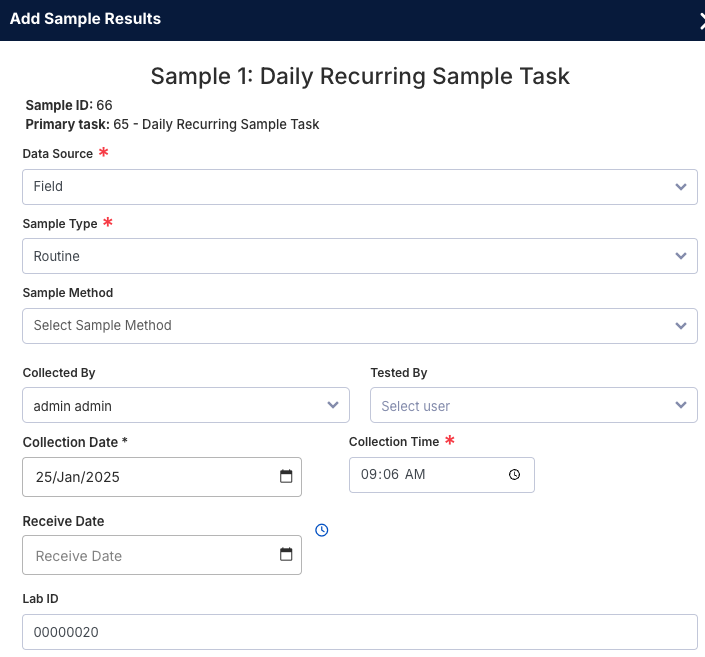
- If the sub-task is related to a sampling task, there will be an additional section titled + Add Sample Results.
- Clicking this section opens the Add Sample Results screen on the right side.
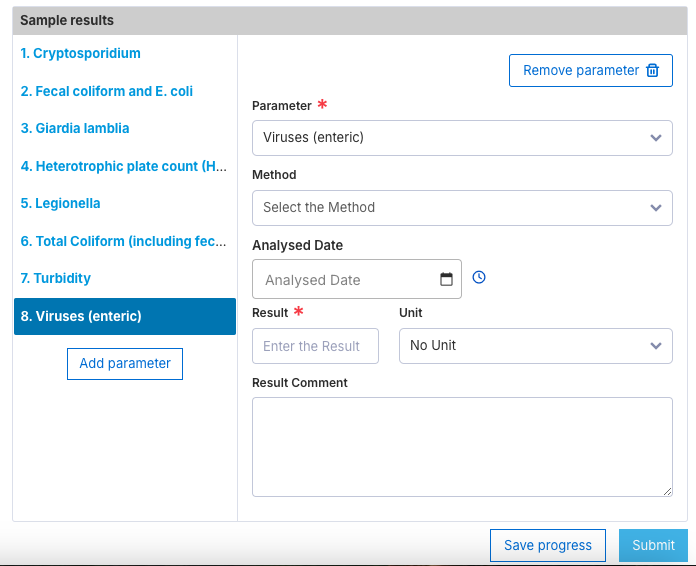
- Entering Sample Data
- Enter the sample results into the provided fields.
- Saving or Submitting Results
- Save Progress: Saves entered data but does not submit the results to the All Sample Results page.
- Submit: Submits the results to the All Sample Results page.
Note: The Submit button is unavailable until all parameters are filled.
- After Submission
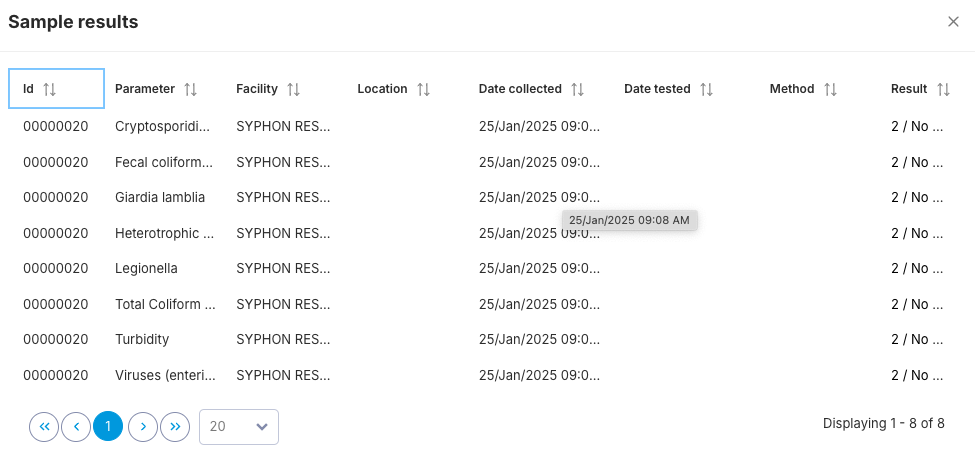
- Once submitted, the + Add Sample Results area will update to show information about the entered sample data.
- To review the results, click the eye icon at the top-right. A pop-up window will display the sample results.
- Changing the Status
- Once the sample results are entered and submitted, you can change the sub-tasks status to Complete.