![Klir_Logo_Colour-B.png]](https://knowledgehub.klir.com/hs-fs/hubfs/Klir_Logo_Colour-B.png?width=181&height=90&name=Klir_Logo_Colour-B.png)
Once you've reviewed the Error Report and corrected any issues in your source data, you're ready to re-submit your file for ingestion.
Before uploading the file, take a moment to confirm that all reported errors have been addressed and that your updated file has been saved.
To re-submit your data:
- Update the source file with the corrected information.
- Review the Error Report one final time to ensure all reported issues have been resolved.
- Save the corrected file.
- Rename the file so that it has a unique file name.
- Place the file in the designated SFTP location.
- Allow the integration to process according to its normal schedule.
- Review the next ingestion summary email to confirm the data was successfully imported.
Important: Use a Unique File Name
When re-submitting data through your SFTP integration, the file name must be unique.
This helps Klir recognize the file as a new submission and ensures it is processed correctly.
A simple change to the file name is all that's required. For example:
|
Original File Name |
Updated File Name |
|
LabResults_20250115.csv |
LabResults_20250115_v2.csv |
|
Results_January.csv |
Results_January_Corrected.csv |
Do I Need to Remove Records That Were Already Ingested?
No.
If some records were successfully ingested during the original import, there is no need to remove them from the file before re-submitting.
Klir automatically identifies and ignores duplicate records during ingestion, allowing you to focus on correcting the failed records without having to rebuild the file.
In most cases, you can:
- Correct the reported errors
- Save the updated file with a new file name
- Re-upload the complete file
This makes the re-submission process simpler and helps reduce the risk of accidentally removing valid data.
Tip: If you're unsure whether a record was successfully ingested, review the ingestion summary email or SFTP Import Errors page before making changes.
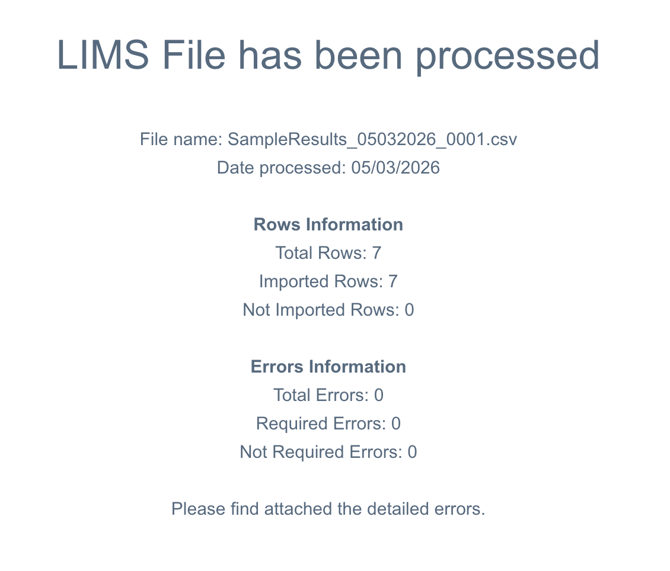
After the integration has processed the updated file, review the next ingestion summary email or the SFTP Import Errors page to confirm that the corrected records were successfully imported.
If additional errors are reported, repeat the troubleshooting process by reviewing the new Error Report and making any necessary corrections.
What Should I Do Next?If your data was successfully imported, no further action is required.
If you continue to receive ingestion errors after correcting and re-submitting your file, additional assistance may be needed.
Continue Reading
- Need Additional Help with Data Ingestion Errors? – Learn how to contact Klir Support and what information to provide to help expedite troubleshooting.