![Klir_Logo_Colour-B.png]](https://knowledgehub.klir.com/hs-fs/hubfs/Klir_Logo_Colour-B.png?width=181&height=90&name=Klir_Logo_Colour-B.png)
Accessing Sample Results
All sample results added to the platform can be located on the All Sample Results Page.
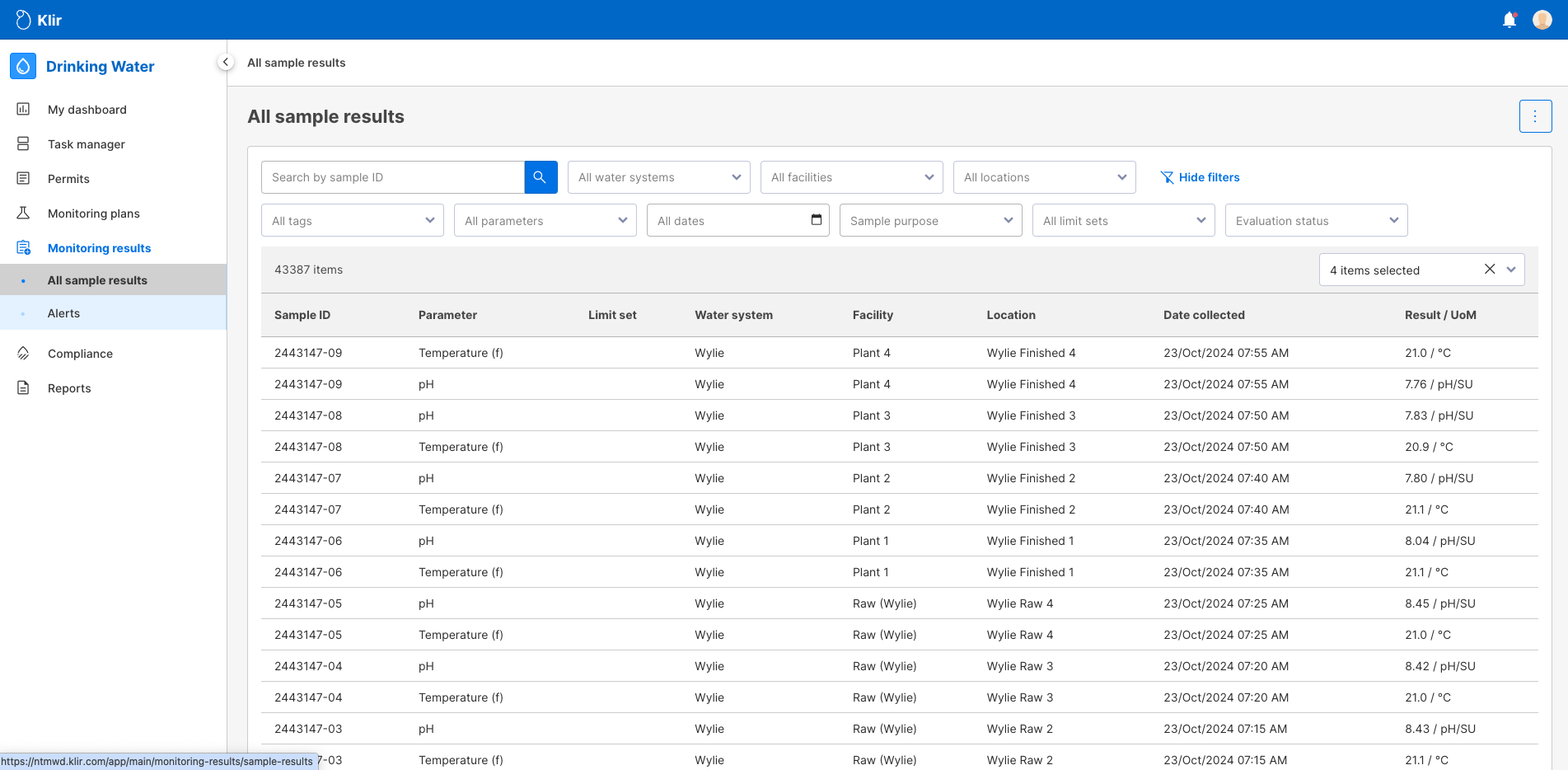
Filters can be used to search for specific sample results using either single filters or a combination of them.
Filter Options:
- Search by Sample ID - shows Sample Results by the Sample ID entered. Only one sample ID can be used.
- All Water Systems - Filters results by all of the Water Systems that exist in the platform
- All Facilities - Filters results by all of the Facilities that exist in the platform
- All Location - Filters results by all locations in the platform
Please note that filtering is hierarchical when using "All Water Systems," "All Facilities," and "All Locations." When a Water System is selected, only the facilities associated with that Water System will be available, and similarly, only the locations linked to the chosen Facility will be shown as filtering options.
- All Tags - Filter by any tags that have been applied to results
- All Parameters - Filter by specific parameters. Multiple parameters may be selected.
- All Dates - Filter by specific dates
- Sample Purpose - Filter by Sample Purpose
- All Limit Sets - Filter by Limit Sets that exist in the platform
- Evaluation Status - Filter but status selections of Limit exceeded, Result OK, and Not Evaluated
You can choose which columns of information are displayed on the Sample Results List by selecting your preferred options from the Columns drop-down menu.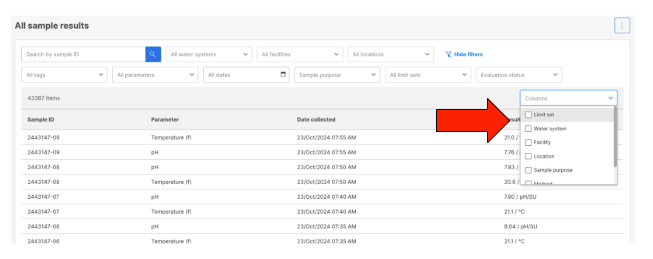
Clicking on a Sample Result entry will open the Sample Result Details page on the right side of the screen for your review.
Evaluation Status Filter
One filter you'll find particularly useful is the Evaluation Status filter. This allows you to quickly assess the status of your sample results based on their evaluation against defined limits.
Filter Options:
- Limit Exceed: Displays sample results that have failed to meet the defined limits, marked in Red.
- Result Ok: Shows sample results that have successfully passed the defined limits, marked in Green.
- Not Evaluated: Highlights sample results that haven't been evaluated against any limits, displayed in Black.
Result Color Codes
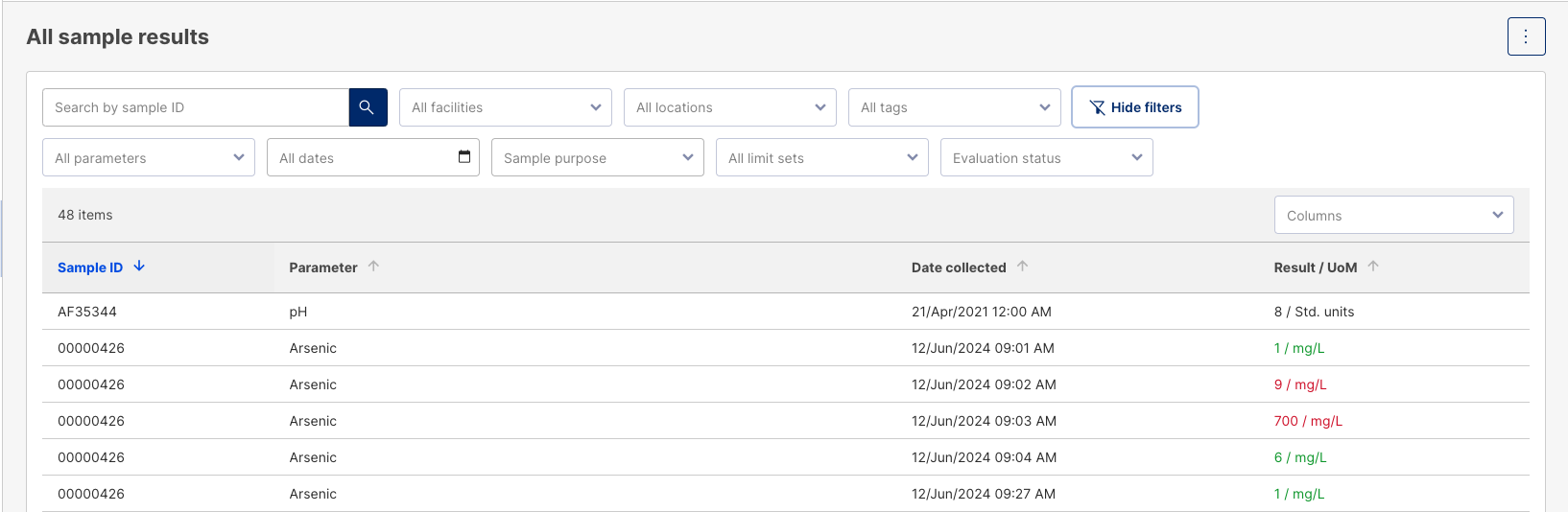
The color codes used in the Evaluation Status filter are also displayed on the All Sample Results screen, allowing you to quickly assess the status of each sample at a glance.
For a more detailed view, just click on any sample result. You'll see the corresponding color-coded status in the Sample Result Details screen, making it easy to understand the evaluation instantly!
Exporting Sample Result Data
You can easily export sample results as either a CSV or Excel file. To do this, simply click the three-dot menu option in the top right corner of the screen. Choose your preferred file format, and you'll be all set!
* Please note that exports will contain all columns of data regardless of how you may have configured your columns to be displayed on screen.
Adding Comments or Notes to a Sample Result
You can add comments or notes for specific sample results in the Notes tab by clicking on the desired sample result first.
Notes can then be applied to the Sample Result in the Notes tab.
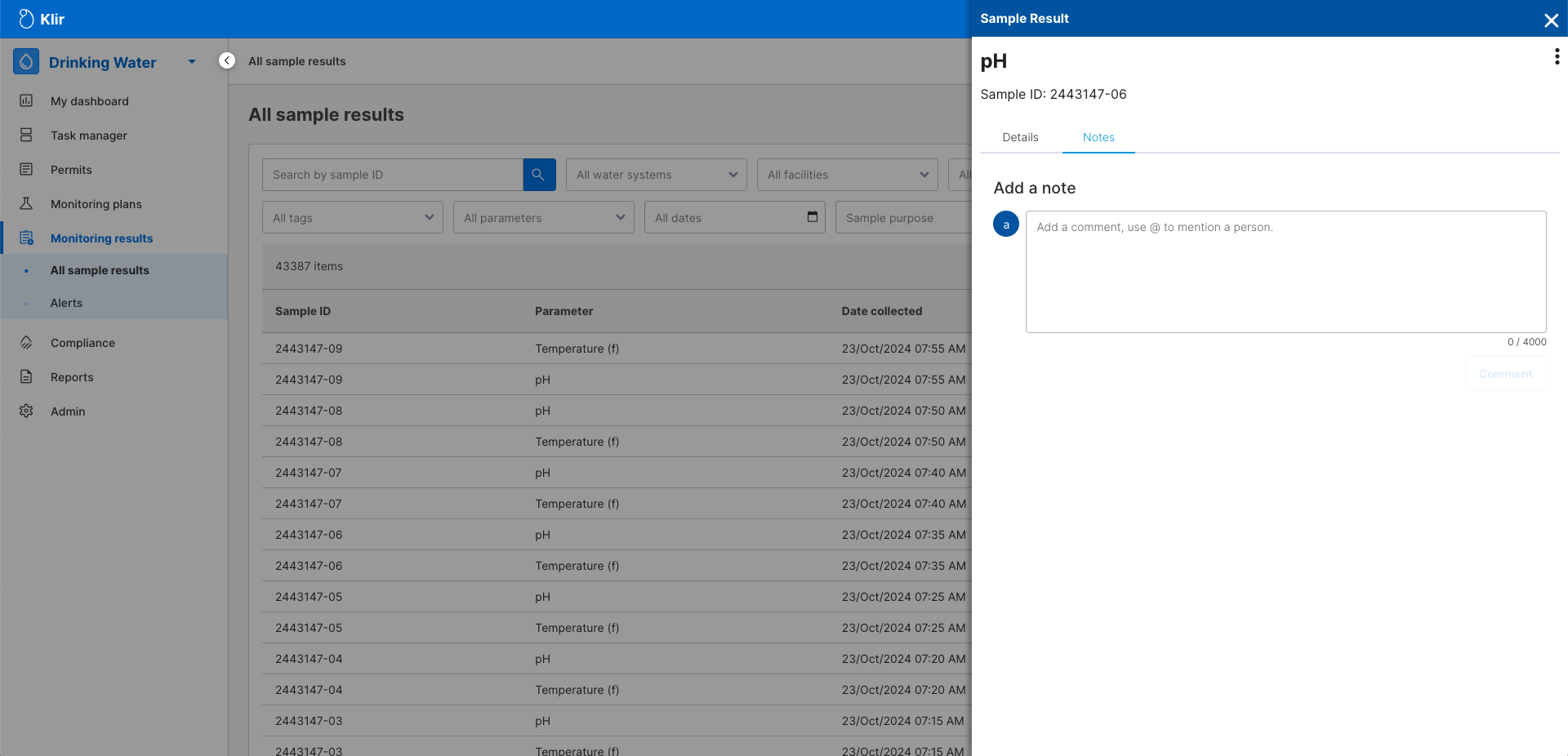
Using notes or comments is an effective way to communicate with team members. You can request specific information or tag individuals to keep them informed about any relevant updates related to the Sample Result. This helps ensure everyone stays in the loop and can collaborate effectively.
Once a note is added, a history of who left the note and when it was created.

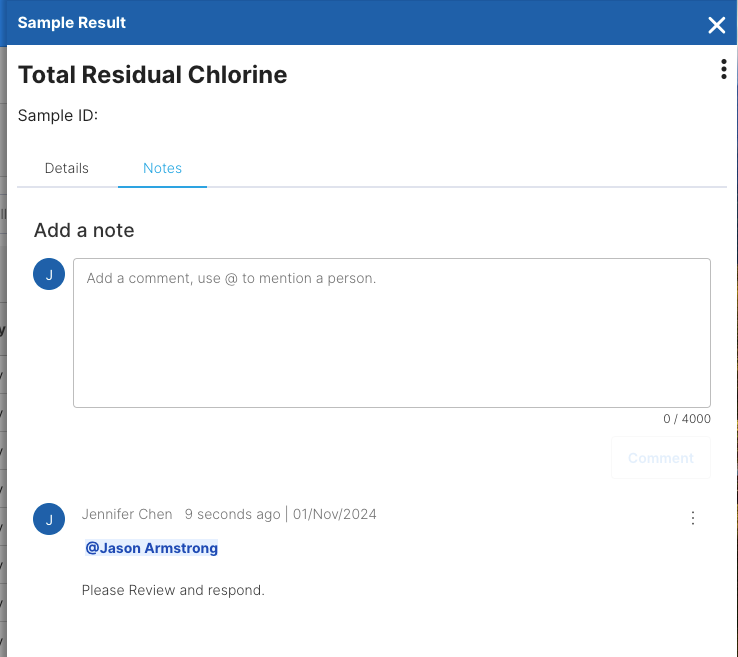
When you tag someone using the “@” symbol, they'll receive an external notification about the comment. This notification includes a clickable link that directs them to Klir, allowing them to quickly review the comment and respond.
Adding Tags to Sample Results
Tags can be applied to Sample Results to help categorize them, making it easier to locate specific items during searches. By using filters based on these tags, you can quickly find relevant results, streamlining your workflow and improving efficiency.
To apply tags to Sample Results on the platform, follow these steps:
- Click on the Sample Result you want to tag.
- Select the menu button and choose "Edit."
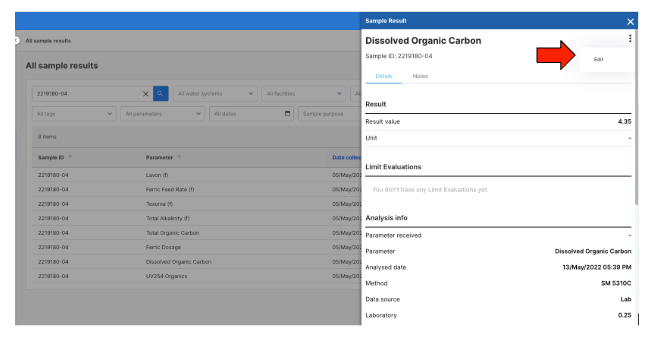
- The Sample Result will open for modification.
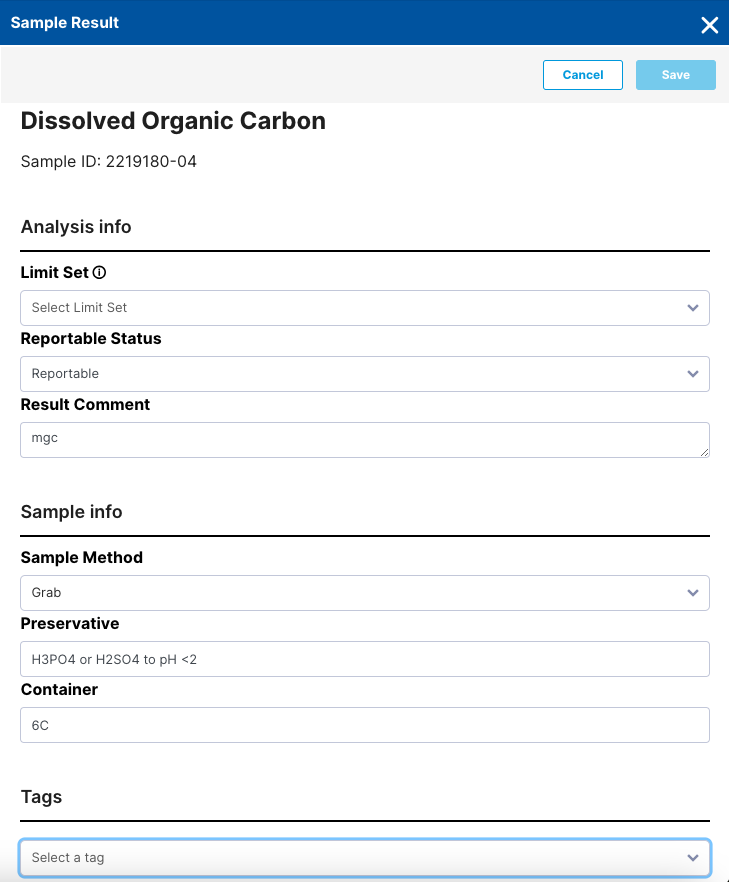
- Add your tags at the bottom of the Sample Result.
- Don’t forget to save your changes by clicking the "Save" button at the top of the panel.
* Please note that permissions to apply tags have been set only for Managers and Admins.
After clicking the Save button, the new tag will appear in the list of tags.