![Klir_Logo_Colour-B.png]](https://knowledgehub.klir.com/hs-fs/hubfs/Klir_Logo_Colour-B.png?width=181&height=90&name=Klir_Logo_Colour-B.png)
Monitoring Requirements Tab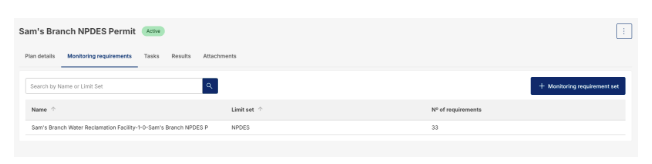
This tab shows any Monitoring Requirement Sets that have been applied to the plan.
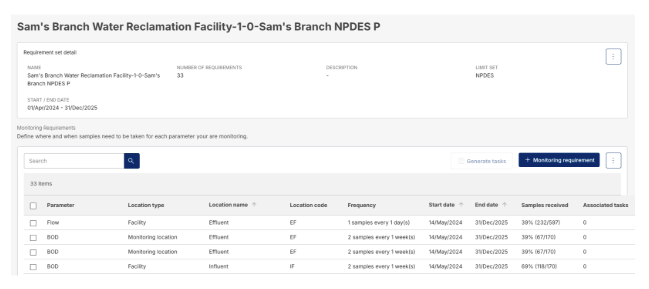
You can click on any Requirement Set to see its details and parameters.
If you click on a Monitoring Requirement, a new screen will appear with the following tabs:
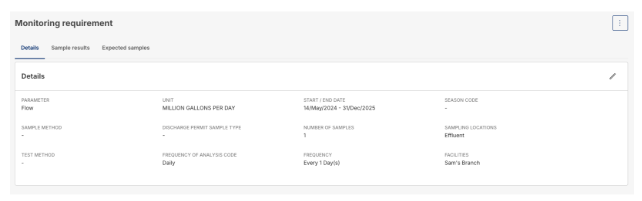
Details Tab: Displays information about the specific parameter, including start and end dates, frequency, and location.
Sample Results Tab: Lists all sample results related to the monitoring requirement, including parameter names, locations, result values, and collection dates.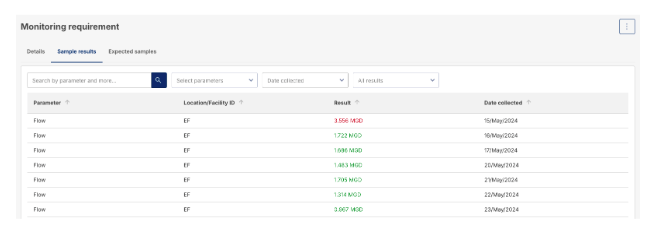
Expected Samples Tab: Displays all expected sample collection dates for the specific monitoring requirement.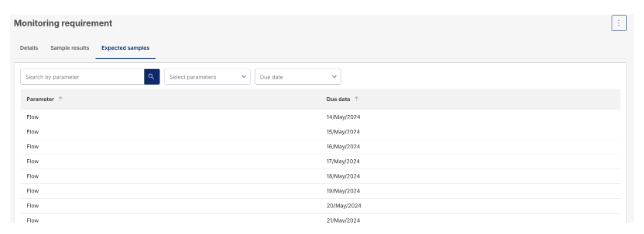
Additional Features for Monitoring Requirements
Generating Tasks:
The Generate Tasks button becomes available after selecting a parameter. 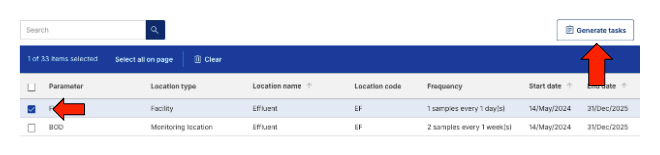
- Tasks can be generated for one or multiple parameters.
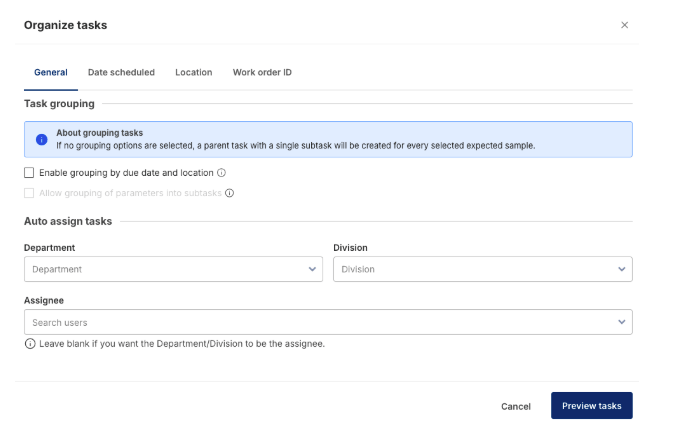
- You can fill out sections such as General, Date Scheduled, Location, and Work Order ID to create tasks associated with the selected parameters.
- A task preview will be shown before committing the tasks to the platform.
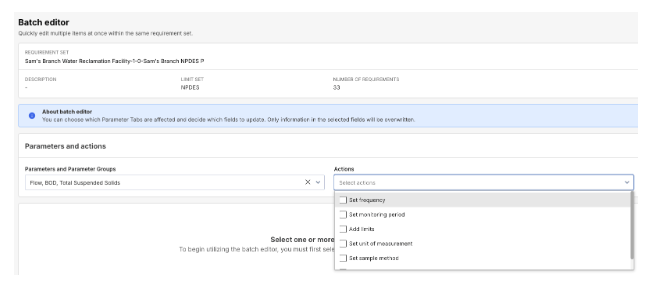
Batch Update:
This option allows for quick editing of multiple items within the same requirement set, such as actions to be taken for specific parameters.

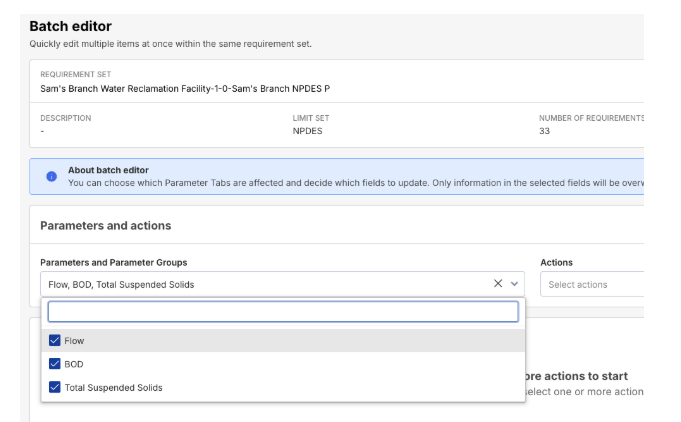
After selecting an action or group of actions, corresponding fields will be displayed for editing and then applied to the selected parameters.
Tasks Tab
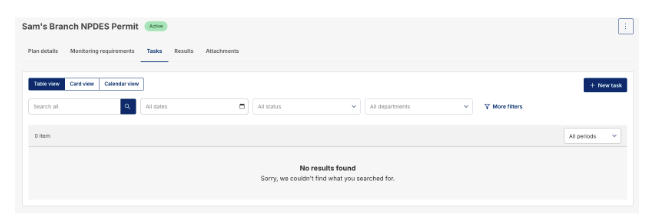
The Tasks tab displays all tasks related to the Monitoring Plan.
Tasks can be clicked on, and will function similarly to other tasks within the platform.
Results Tab
The Results tab shows all sample results for the Monitoring Plan.
This tab functions similarly to the All Sample Results page, where you can review and analyze sample data.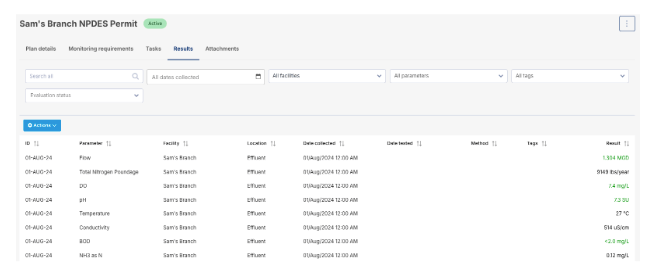
Attachments Tab
The Attachments tab allows you to upload files or images to the Monitoring Plan for easy reference.