![Klir_Logo_Colour-B.png]](https://knowledgehub.klir.com/hs-fs/hubfs/Klir_Logo_Colour-B.png?width=181&height=90&name=Klir_Logo_Colour-B.png)
Template Configuration, Report Generation & Sharing
This article provides an overview of the new Inspection Report experience, highlighting improvements to template management, dynamic report generation, and final report sharing.
These enhancements give administrators greater control over report templates while providing inspectors with a clear, guided workflow for creating, editing, and distributing inspection reports.
Part 1: Template Configuration & Variable Management
1.1 Template Configuration Hub
The Template Configuration screen is the central administrative hub for managing all inspection report templates.
Navigation:
Community → Admin → Template Configuration
Admin Workflow
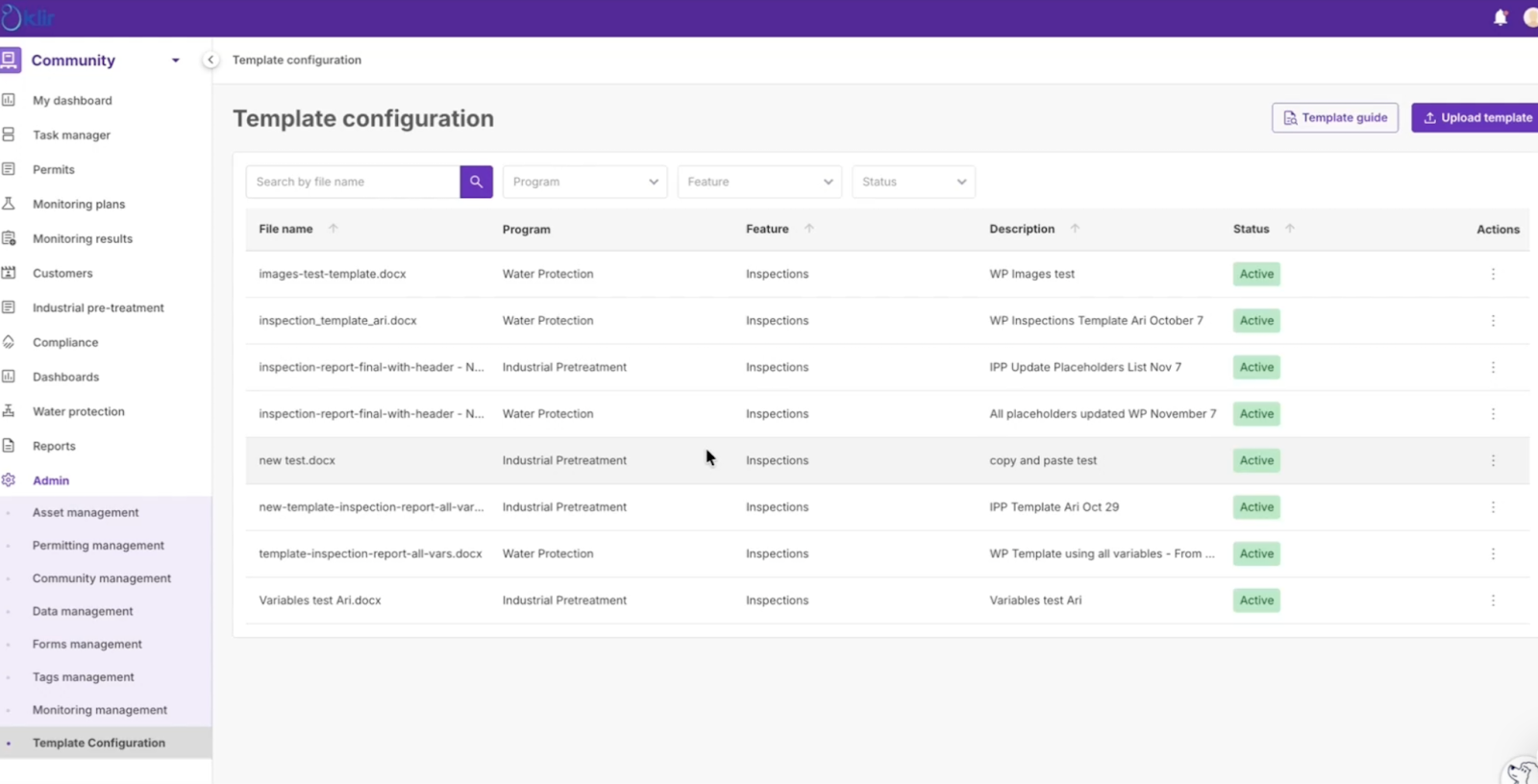
- Navigate to Admin → Template Configuration
- Use filters (Program, Feature, Status) or the search bar to find templates
- Click Upload Template
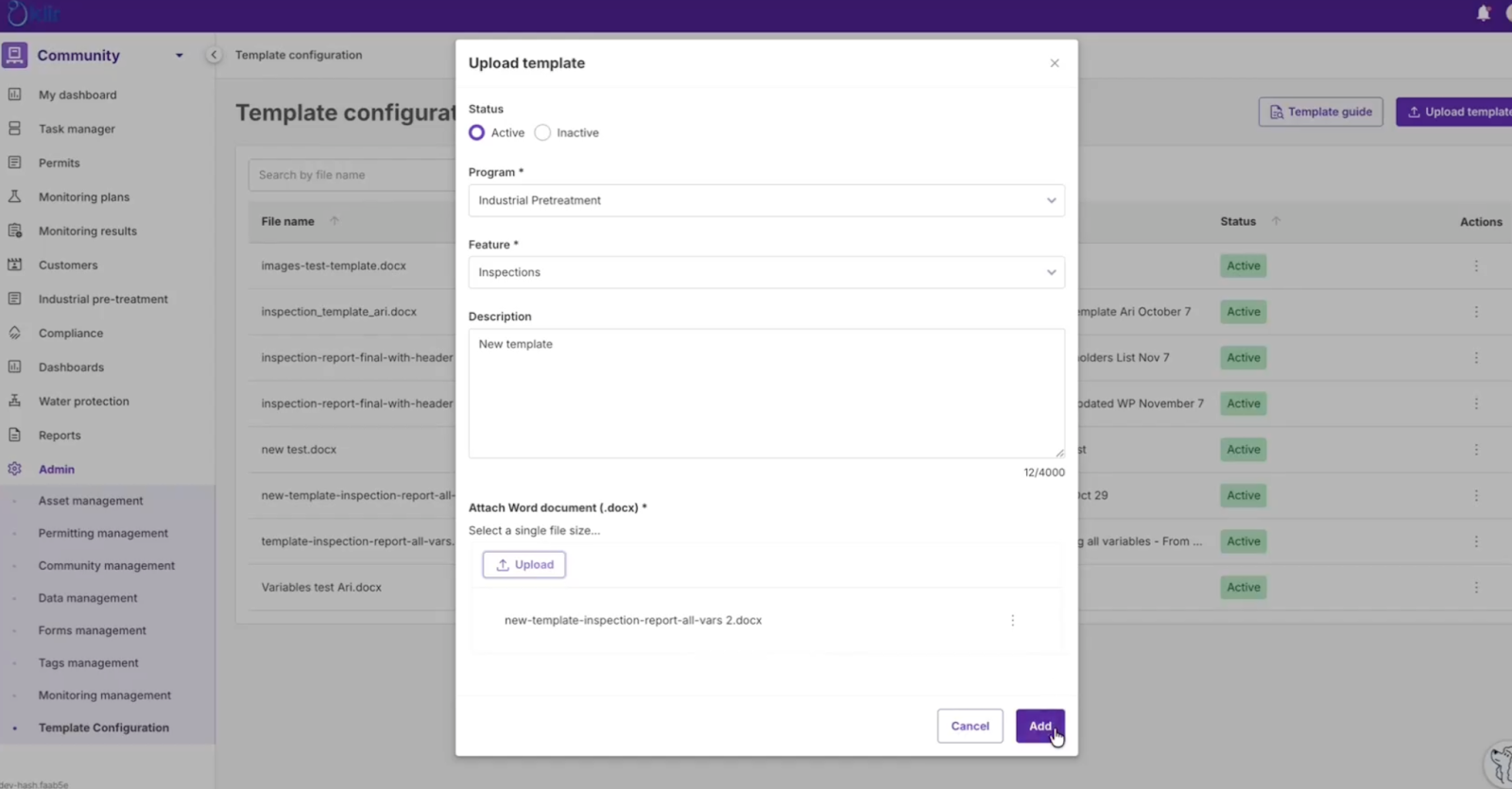
- Configure the template:
- Status: Active or Inactive
- Program (e.g., Industrial Pretreatment, Water Protection)
- Feature (Inspections or Violations)
- Description
- Upload the final .docx file
Template Maintenance
- Edit Details: Update template metadata (status, program, description)
- Replace Template File:
To update the uploaded .docx, the existing template must be deleted and re-uploaded with the new file
1.2 Template Editor & Dynamic Content
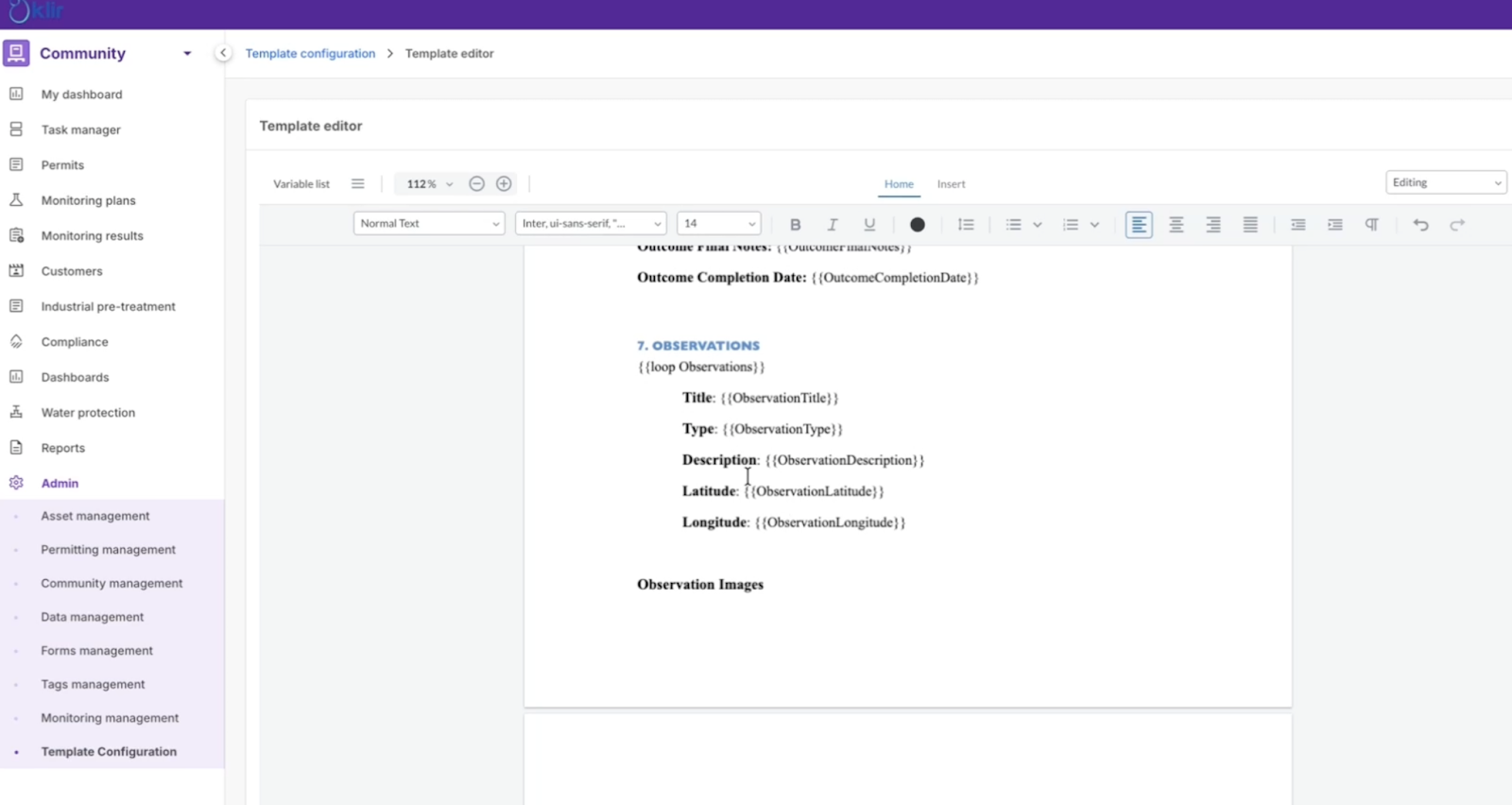
After uploading, templates can be reviewed and updated using the Template Editor, a rich-text interface that supports dynamic data placeholders.
Formatting Guidelines (Important)
- Only use formatting tools available within the editor
- Avoid pasting styles from Word, Google Docs, or other tools (e.g., Heading styles, custom fonts)
- Unsupported formatting may cause rendering or report generation failures
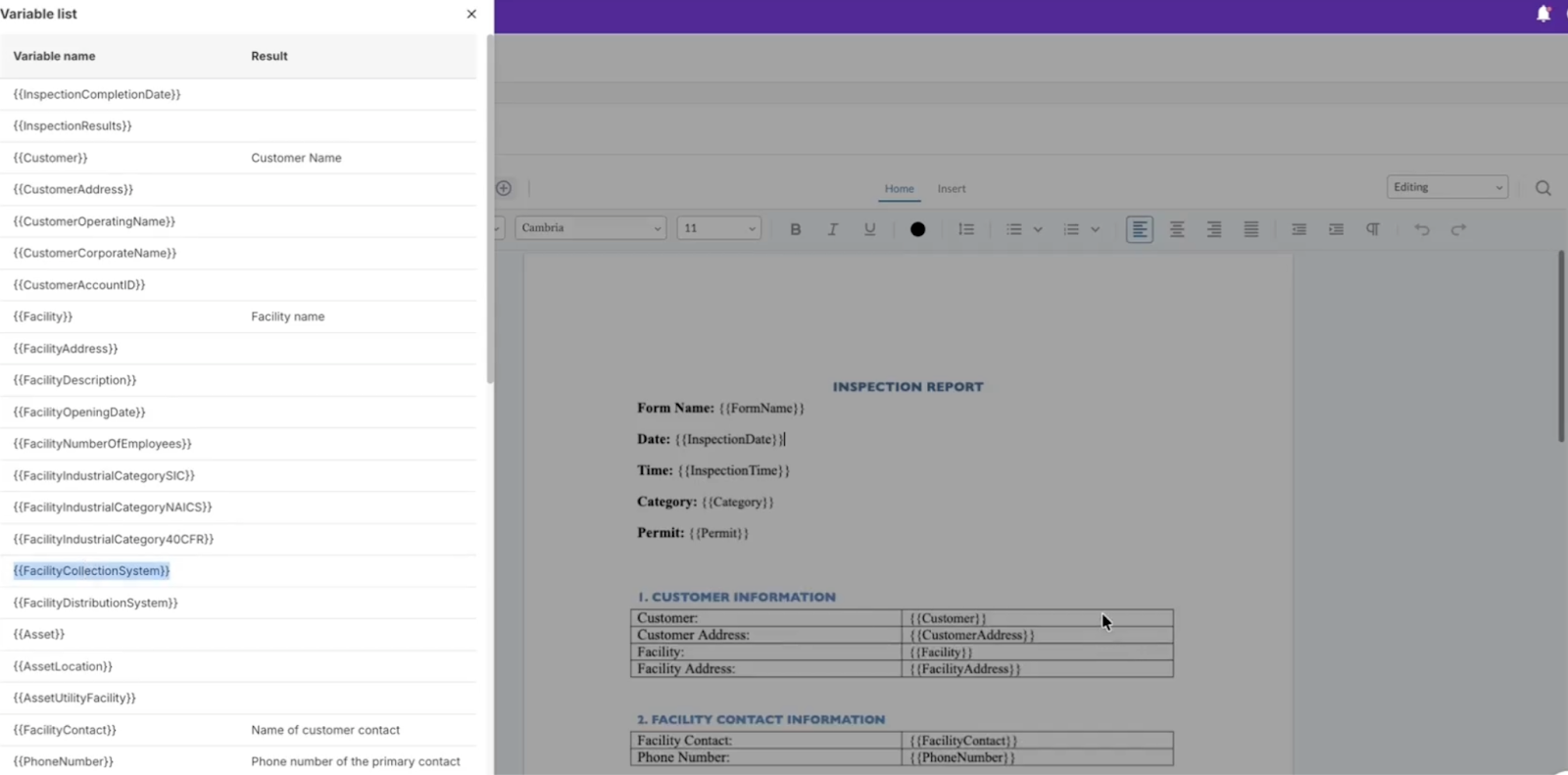
Variable Placeholders
- The Variable List is available from the left-hand menu
- Variables use the syntax
- Copy variables directly from the list and paste them into the template
Supported Loops
Loops allow repeatable inspection data to render automatically:
Displays all inspection images with file name and date
Displays all field observations (title, type, description, location)
Displays questions and answers from inspection form sections
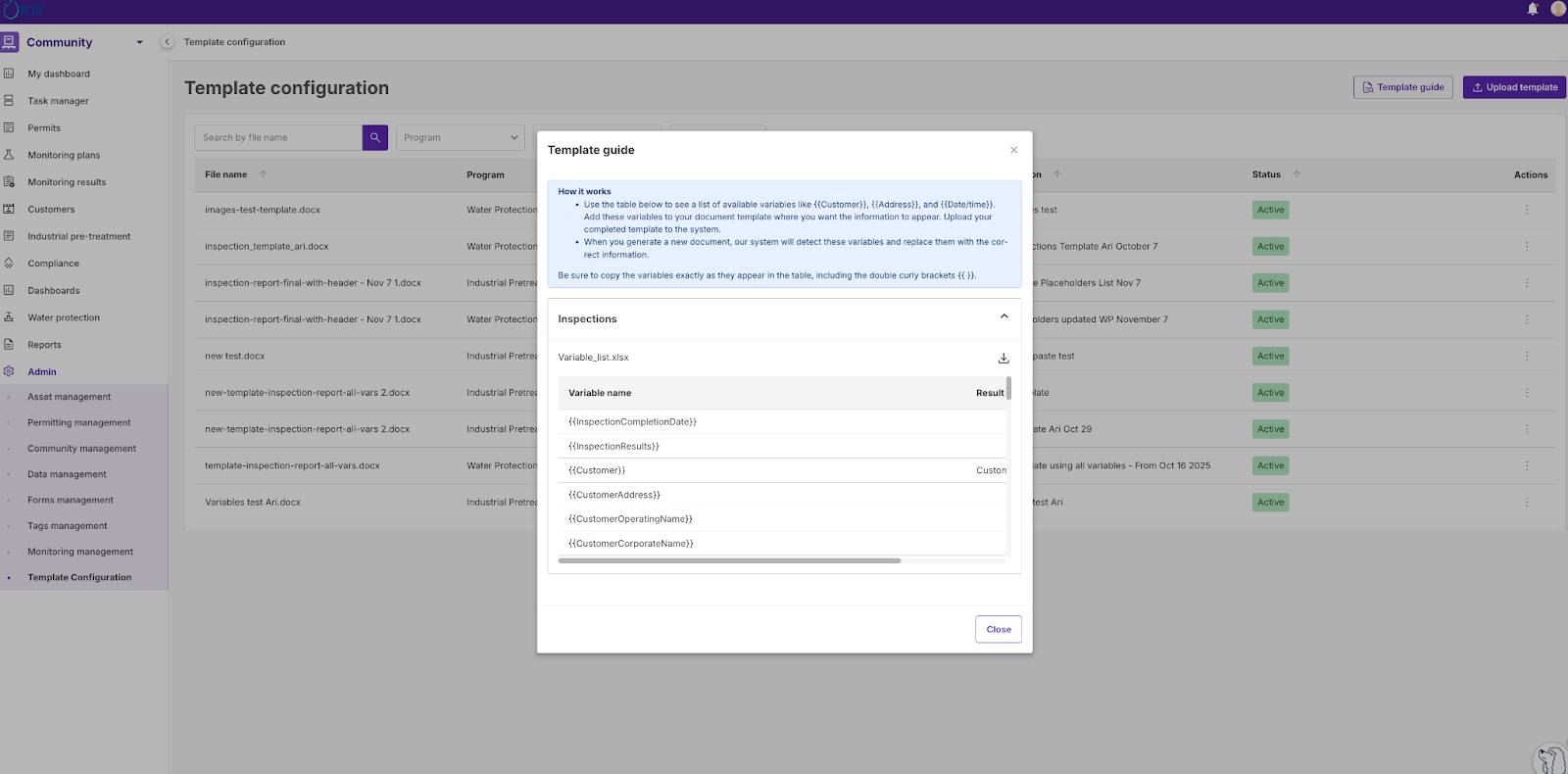
1.3 Template Guide
The Template Guide provides:
- An overview of how placeholders work
- A complete list of available variables
- A downloadable Excel file containing all supported placeholders
Access the guide directly from the Template Editor.
Part 2: Report Generation, Editing & Sharing
2.1 Generating & Editing a Report (DOCX Stage)
Inspection reports are generated from a completed inspection record and follow a three-step workflow.
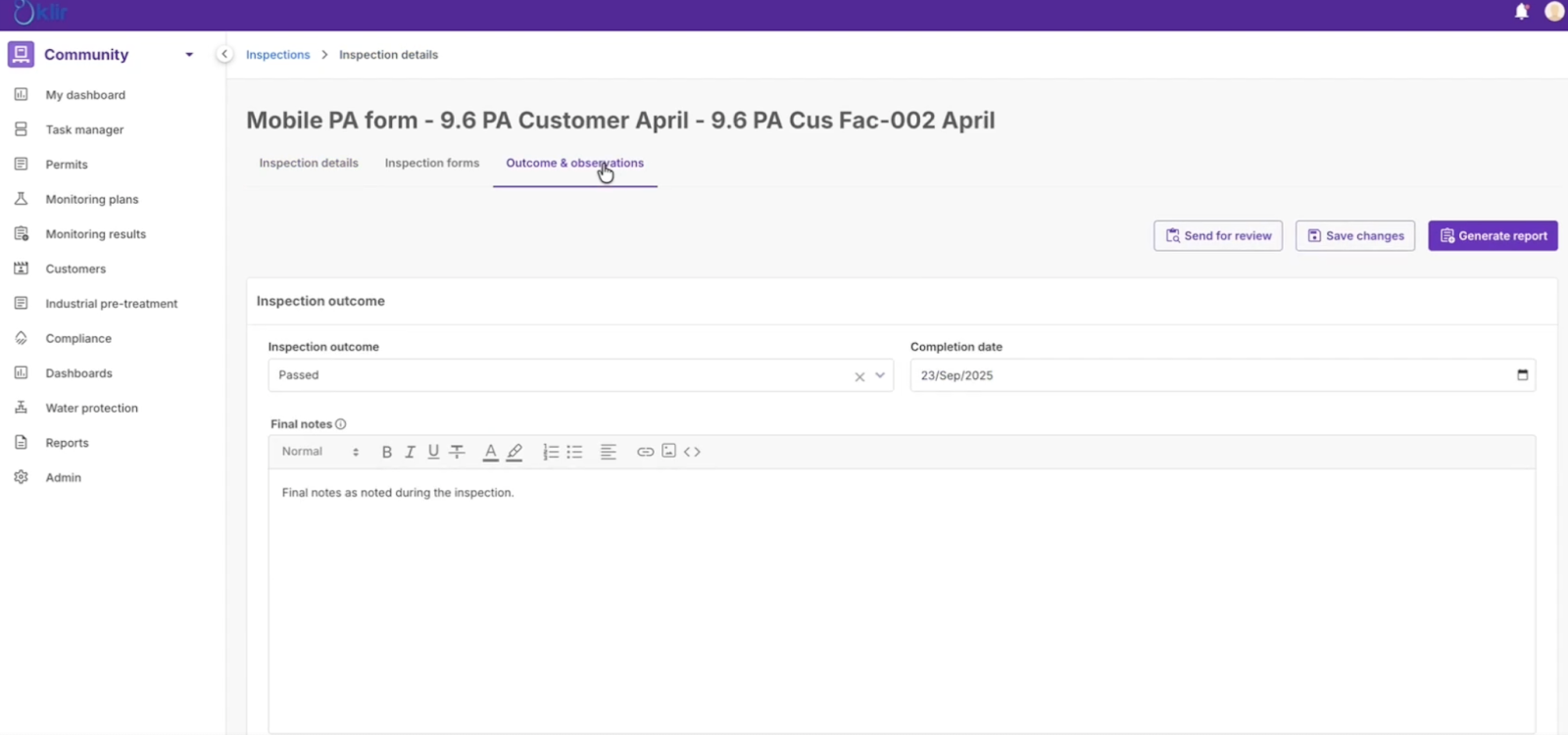
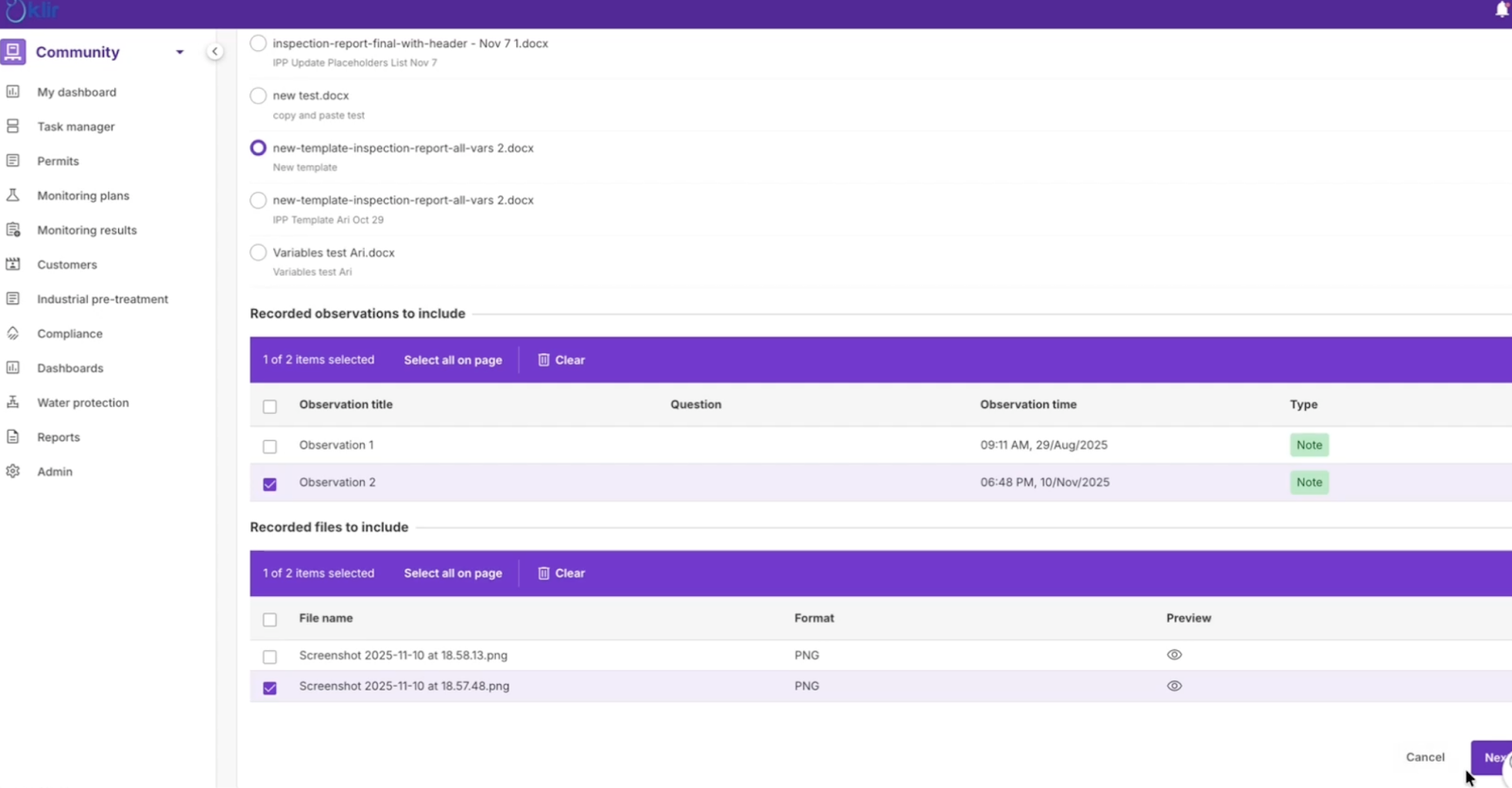
Step 1: Configuration
From the Outcome & Observations tab:
- Click Generate Report
- Select a .docx template (only templates tied to the same Program are shown)
- Choose which Observations and Images to include
- Click Next
Step 2: Editing (DOCX Draft)
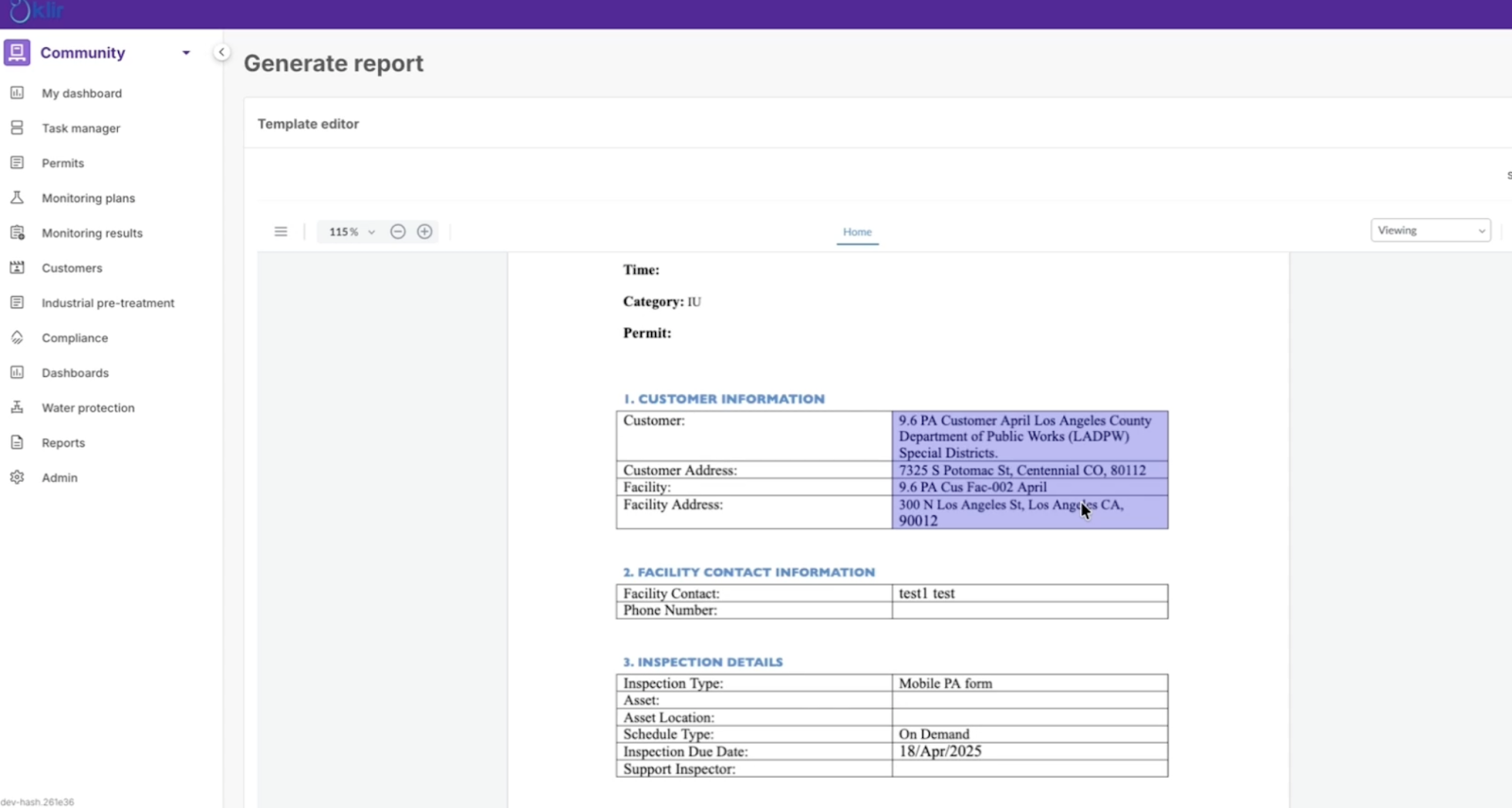
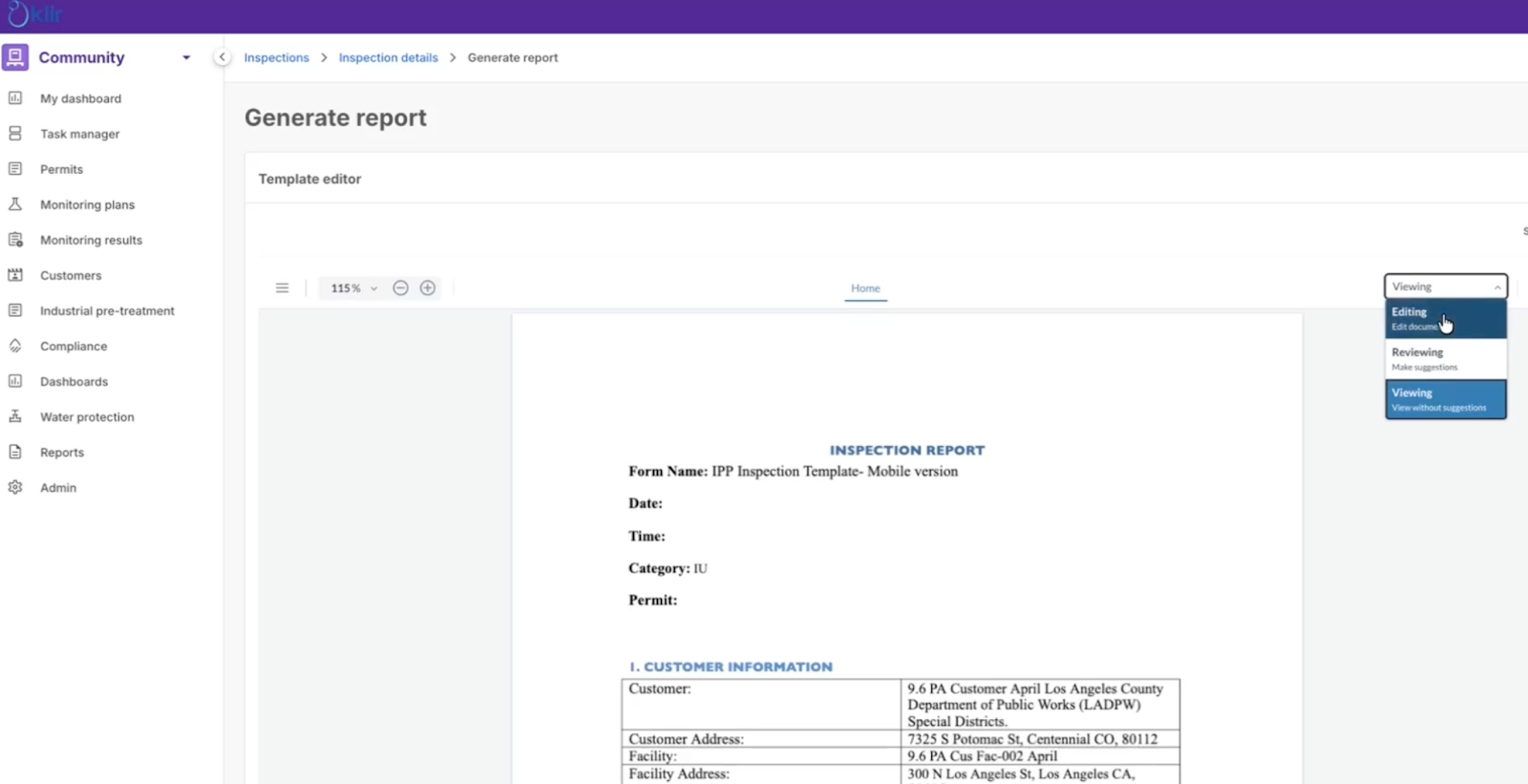
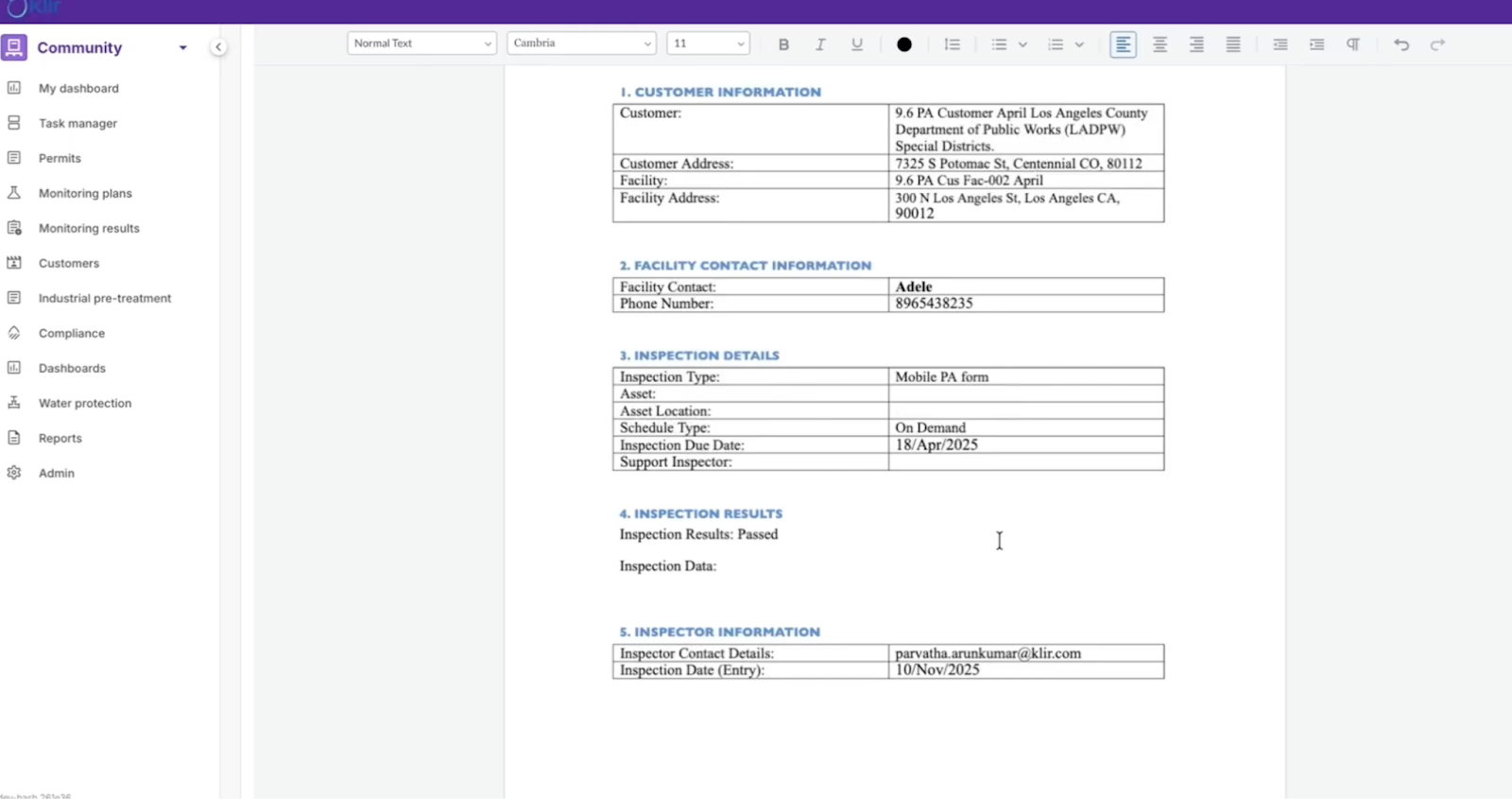
- The system generates a draft report using the selected template and inspection data
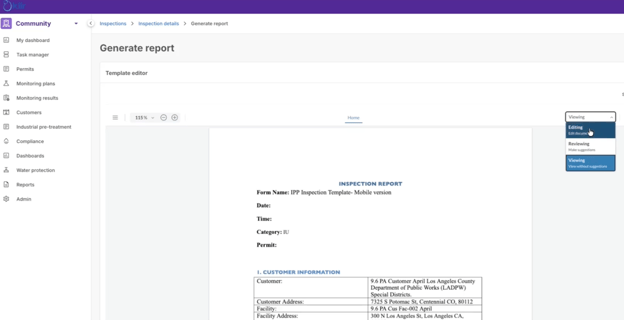
- The report opens in View Mode
- Switch to Edit Mode to make changes
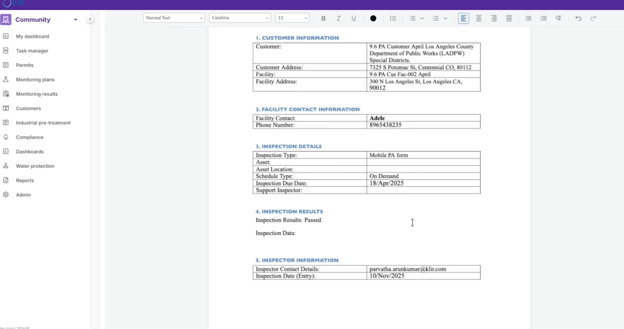
Supported edits include:
- Text formatting (bold, font adjustments)
- Adding inline text
- Inserting tables
- Removing placeholders or sections
Save as Draft (Critical)
- All changes must be saved using Save as Draft
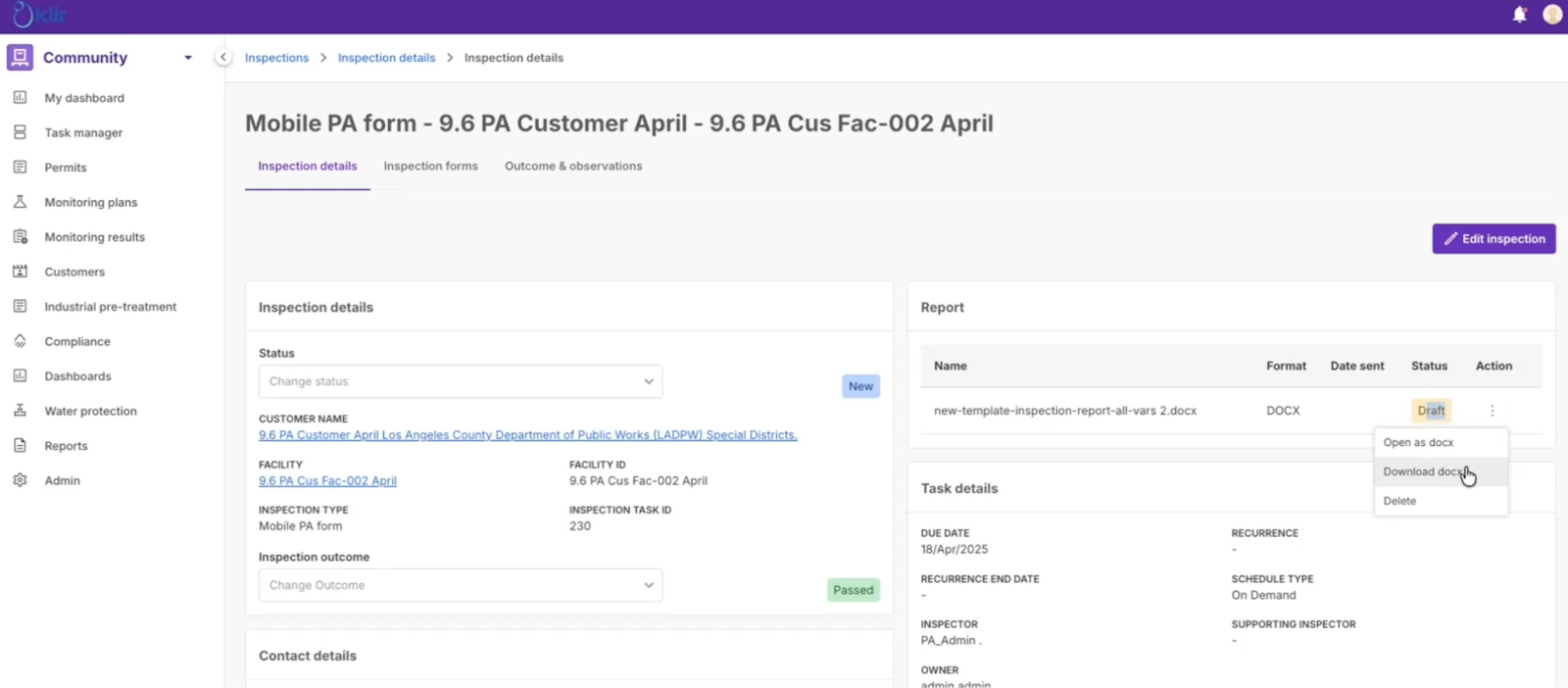
- Drafts remain editable and stored in DOCX format
Important Notes:
- The DOCX Draft stage is the only time edits are allowed
- Leaving the screen without saving will result in lost changes
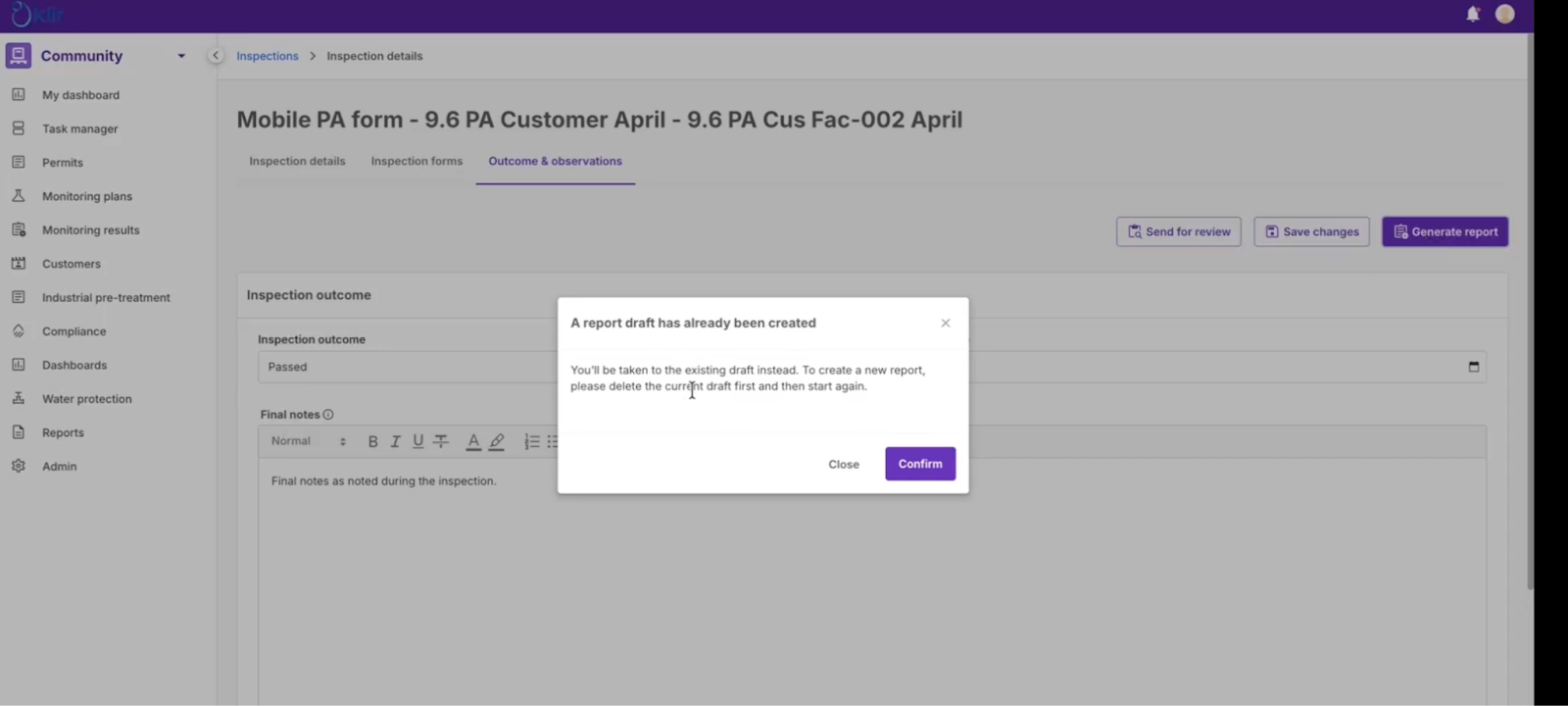
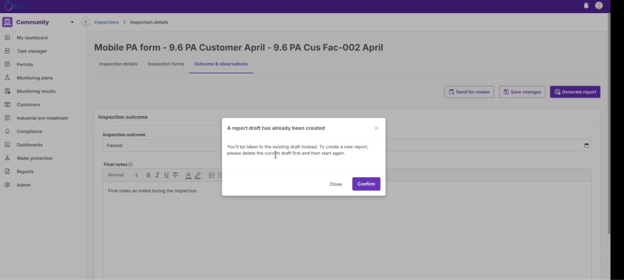
- If a draft exists, selecting Generate Report will prompt you to:
- Continue editing the existing draft, or
- Delete it and start over
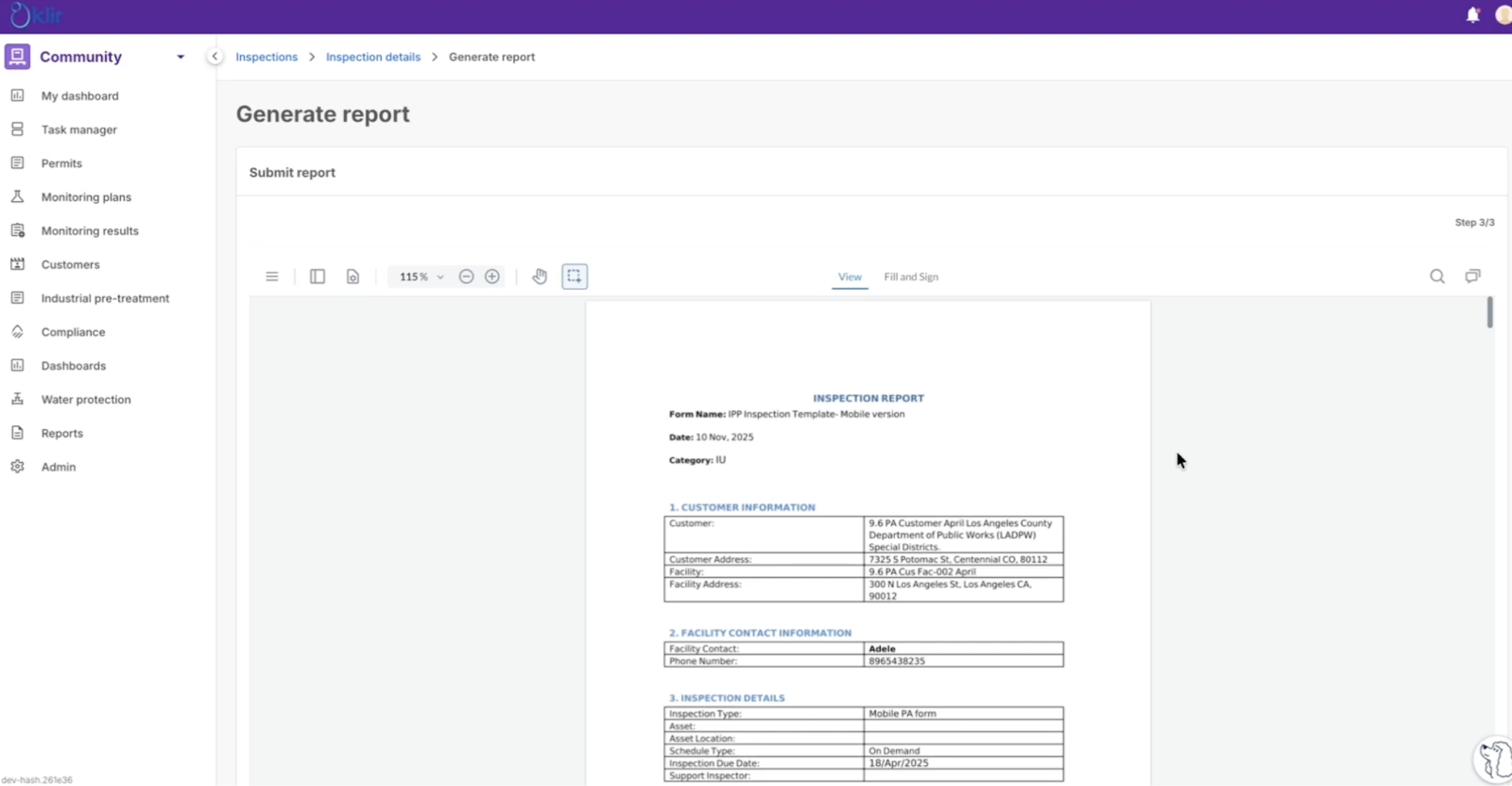
2.2 Finalizing the Report (PDF Conversion)
When editing is complete:
- Click Submit Report (or Finalize Report)
- The DOCX is converted into a secure PDF
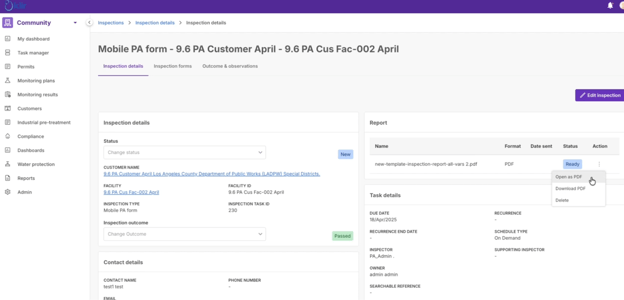
- Report status changes from Draft to Ready
At this stage:
- The report becomes locked and non-editable
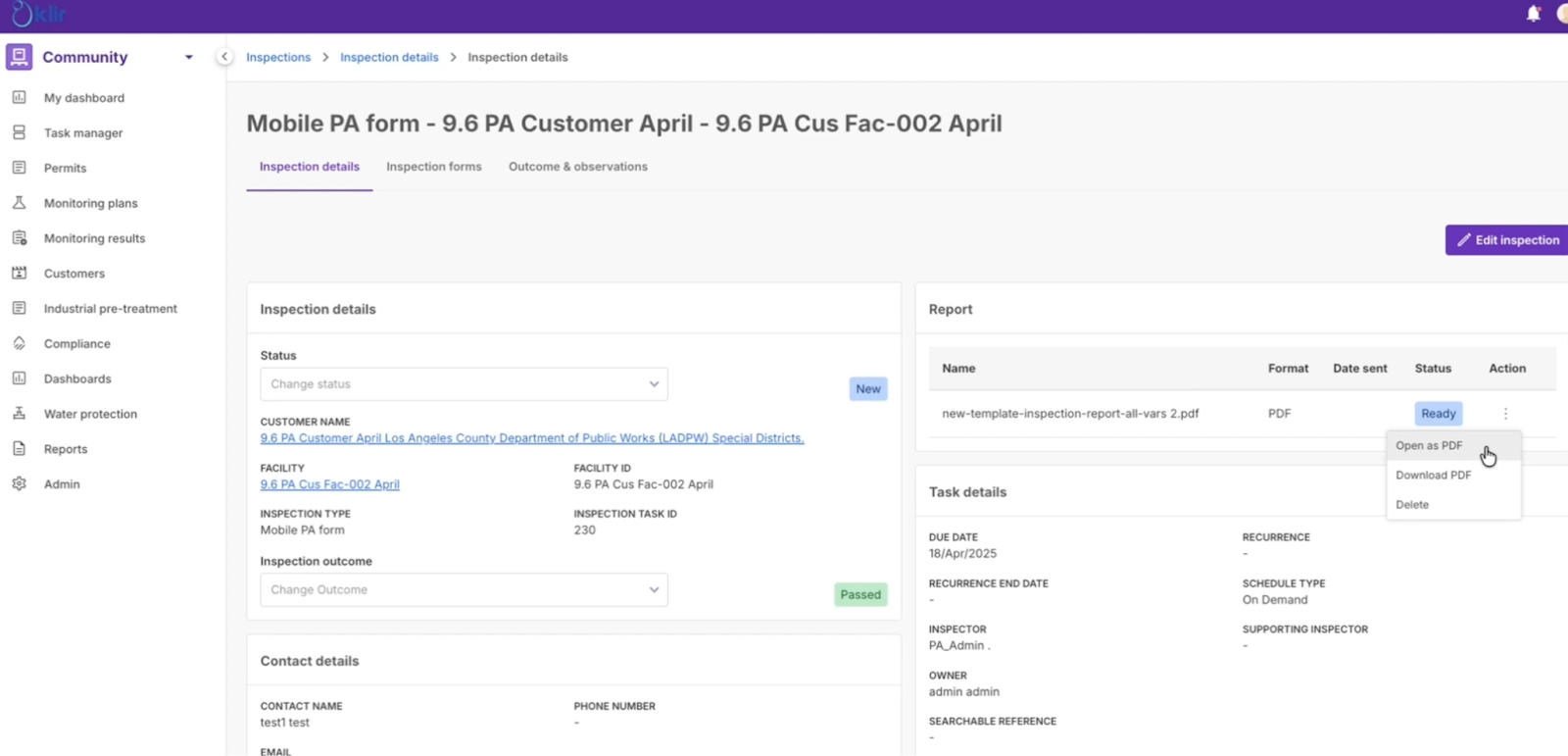
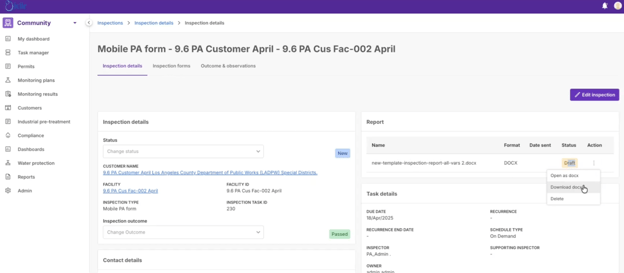
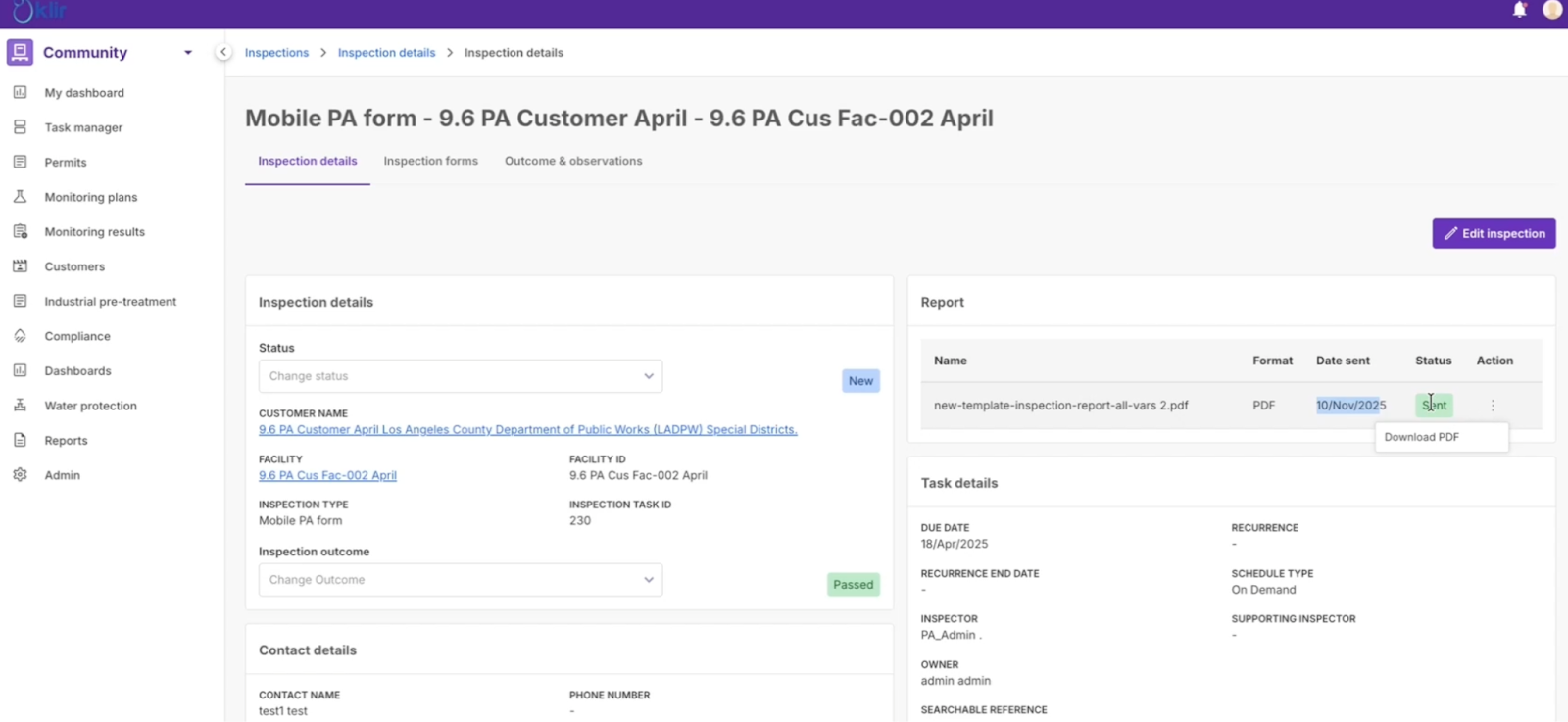
- Users may still delete the PDF and regenerate the report if needed
2.3 Post-Finalization Actions (PDF Stage)
Once the report is in Ready status, the following actions are available:
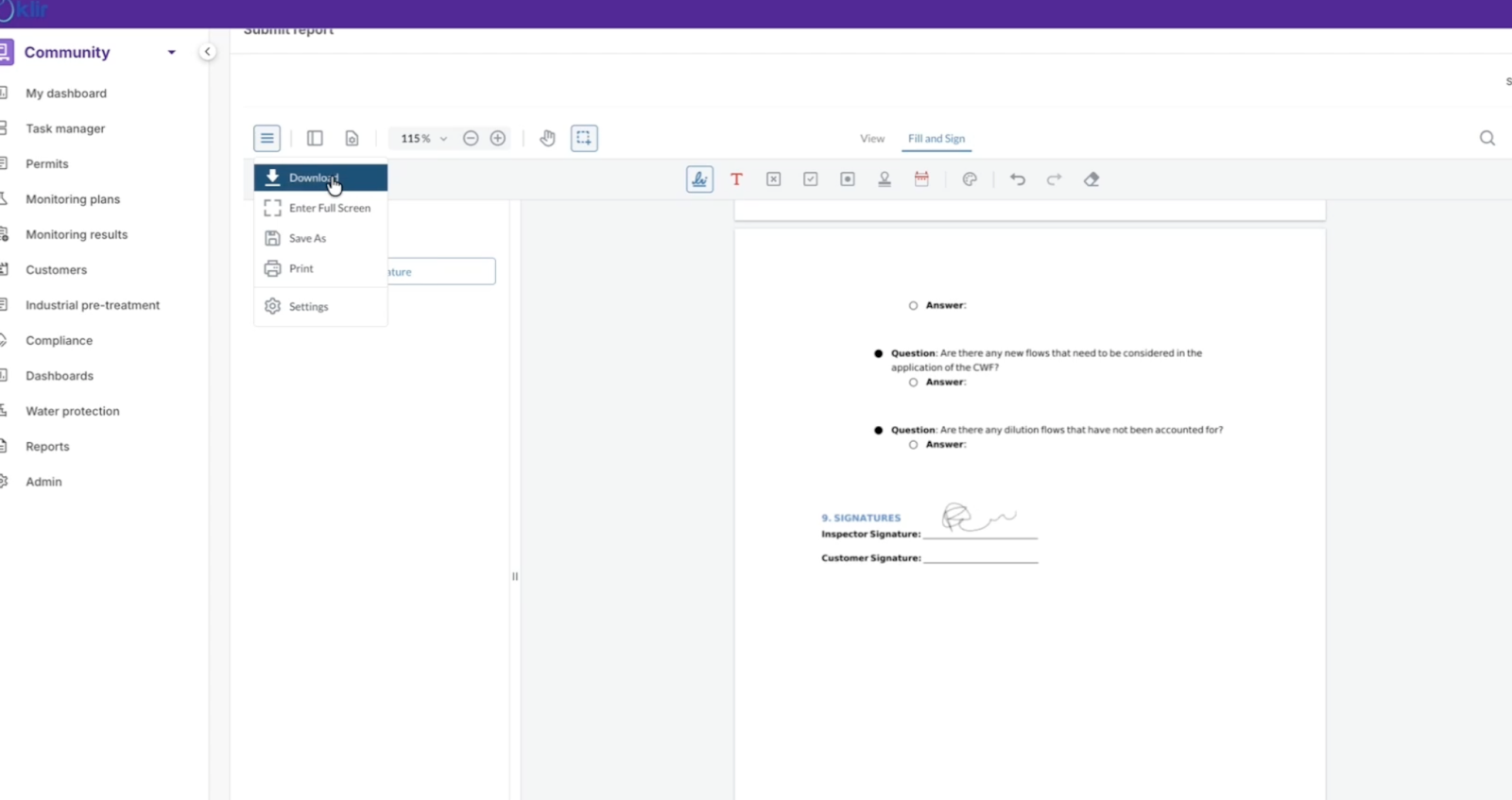
Digital Signatures & Annotations
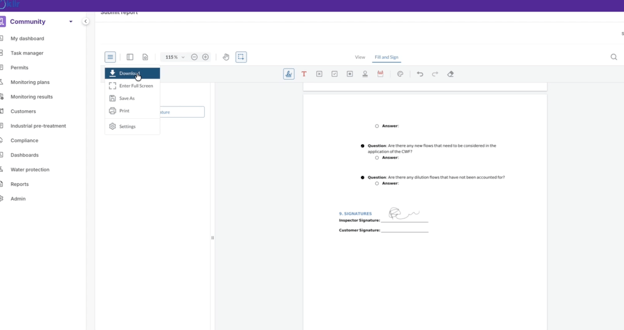
- Use Fill & Sign tools in the PDF viewer
- Create and apply a typed or drawn signature
- Best practice: Delete your saved signature after use to prevent reuse
Download & Export
- Download the report as a PDF
- Choose to:
- Include annotations (signatures, highlights), or
- Download a clean version
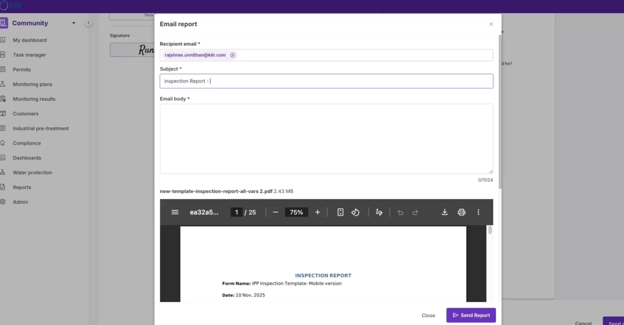
Send as Email
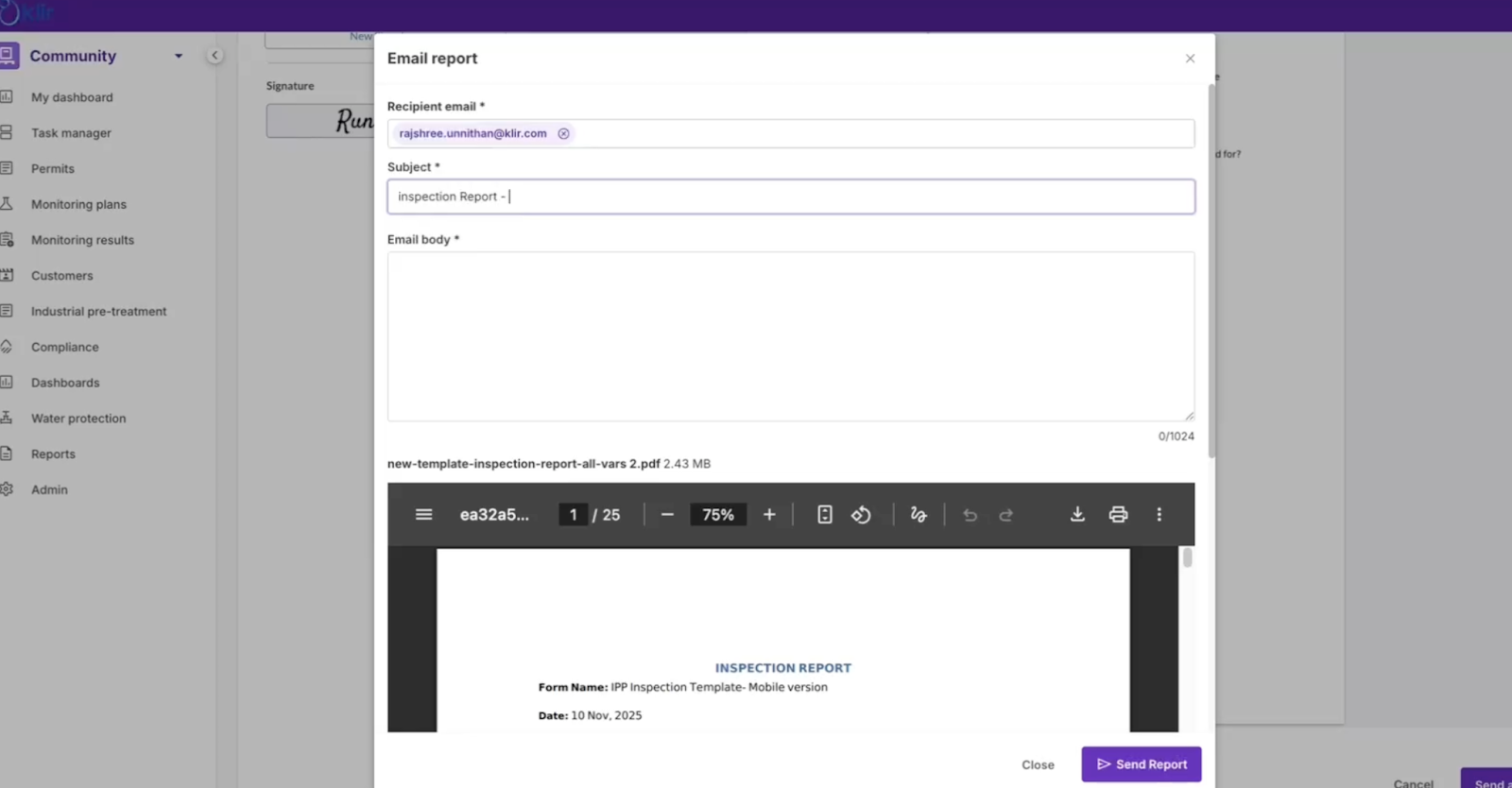
- Click Send as Email
- The Ready PDF is automatically attached
- Recipient email is pre-populated from the primary contact (editable)
- Customize subject and message body
Tips:
- Add your own email address to receive a copy
- Verify the attachment file size before sending to avoid email delivery issues
- from the right-hand option.
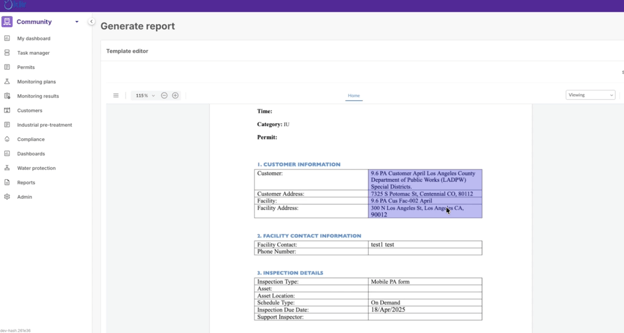
- Editing Options: Users can make formatting changes (bold, font adjustments), add inline text, insert tables, and delete placeholder fields or sections if needed.
- Crucial Step: Save as Draft: Any changes made in Edit Mode must be saved using the Save as Draft button. This saves the report in the DOCX format and keeps it editable.
Notes:
- Editability Window: The DOCX Draft stage is the only time a user can edit the report content, layout, or included data. Once submitted, it converts to a PDF and becomes locked.
- Draft Status: The report remains in a Draft status until final submission. If a draft exists, clicking "Generate Report" will prompt the user to continue working on the existing draft or delete it and start over.
- Save Draft: If the user leaves the screen without clicking on ‘Save as draft’ or before finalizing the report, they will lose any changes made.
2.2 Finalizing the Report (PDF Conversion)
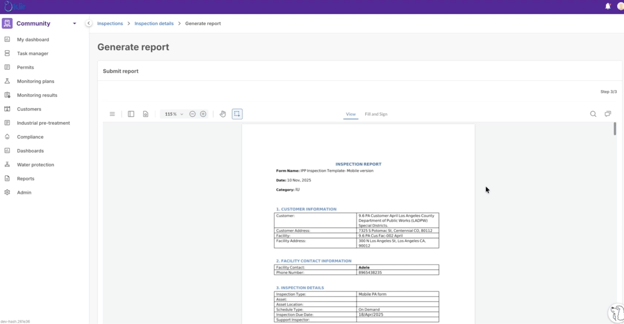
Finalizing the report converts the editable DOCX file into a secure PDF, enabling final actions like signing and sharing.
Process Flow:
- Submit Report: When satisfied with the DOCX draft, click Submit Report (or Finalize Report).
- Conversion: The application processes the DOCX and converts it into a PDF file.
- Status Change: The report status changes from Draft to Ready. At this point, the report is permanent, and the system prevents further editing. At this stage, users can still delete the PDF, if they wish to start from scratch from the Inspection Details Report card actions.
2.3 Post-Finalization Actions (PDF Stage)
Once the report is in Ready (PDF) status, users can perform three key actions directly from the viewer menu or the Inspection Details screen:
- Digital Signature & Annotations:
- The new PDF viewer allows users to access Fill and Sign tools.
- Users can create a new signature (draw or type) and apply it directly to the designated signature blocks in the PDF.
- Note: Users should delete their digital signature after use (via the signature manager menu) to prevent others from accessing or reusing it later.
- Download & Export:
- The report can be downloaded directly as a PDF file.
- Users can choose whether to Include Annotations (digital signatures, highlights) in the downloaded file or download a clean version.
- Send as Email:
- Clicking Send as Email opens a modal pre-populated with the Ready PDF attached.
Part 3: Template & Reporting Cheat Sheet
- Copy/paste behaviour can be inconsistent
👉 Editing in Word and re-uploading is often easier - Only use formatting options supported by the Template Editor
- Parsing errors with placeholders can often be resolved by reviewing or simplifying the placeholder structure
- Loops display data linearly:
- Question and Answer placeholders cannot be split into smaller components
- The report generator is not Microsoft Word and does not support all Word features
- If templates or reports fail to load, please contact Klir at support@klir.com
- Sample .docx templates and their resulting PDFs are available for reference—review them in pairs
- For advanced or custom layout needs, contact Klir at support@klir.com to confirm feasibility with the template engine