![Klir_Logo_Colour-B.png]](https://knowledgehub.klir.com/hs-fs/hubfs/Klir_Logo_Colour-B.png?width=181&height=90&name=Klir_Logo_Colour-B.png)
Overview
To improve usability and streamline workflows, the Data Ingestion Rule Dictionary has been relocated to Admin → Monitoring Management. This change provides easier access and a more intuitive experience when managing data ingestion rules.
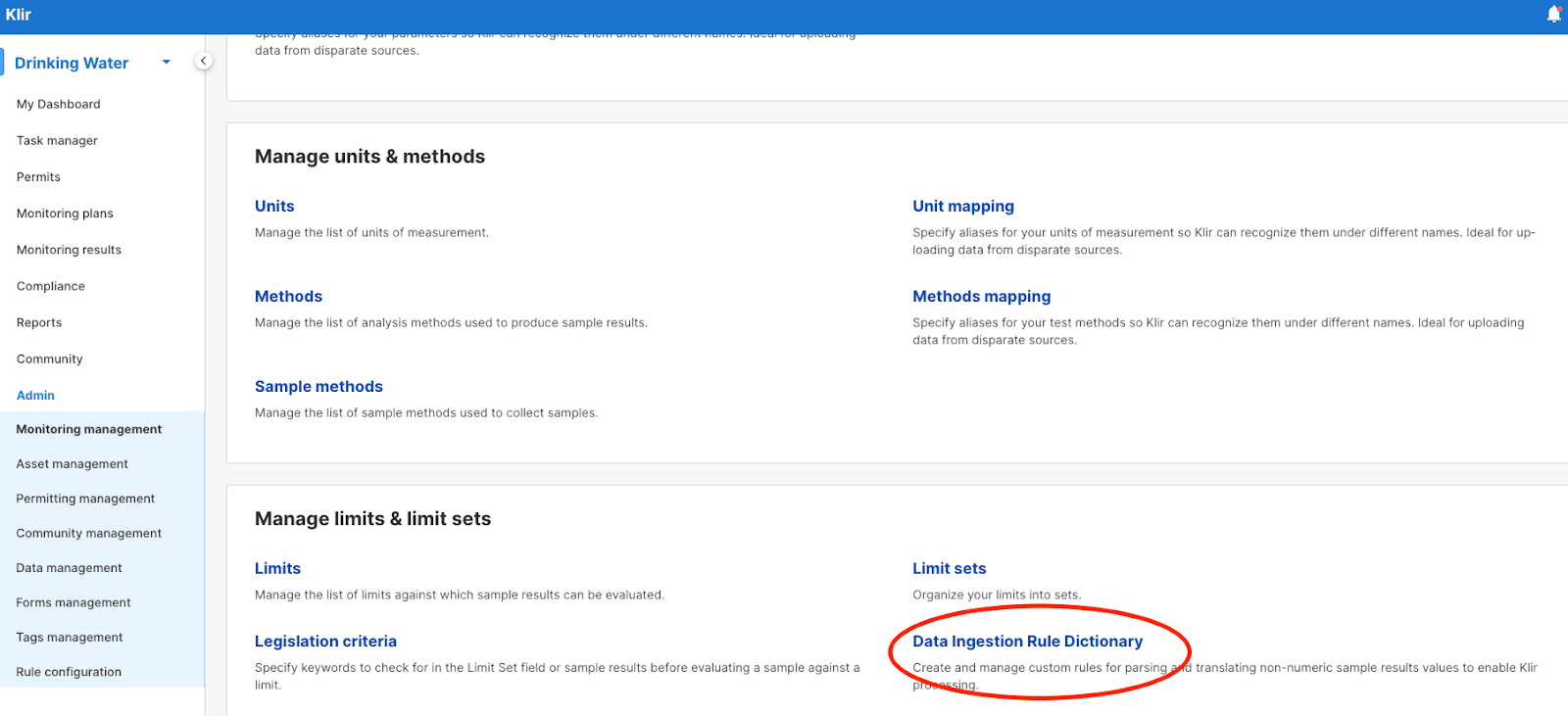
Access and Permissions
Access to the Data Ingestion Rule Dictionary is controlled through role-based permissions. Administrators can configure permissions to ensure users have the appropriate level of access based on their responsibilities.
Available permissions include:
Create Data Ingestion Rule
Allows users to create custom rules within the Data Ingestion Rule Dictionary. These rules outline the process for handling non-digital results.
Edit Data Ingestion Rule
Allows users to modify existing rules to accommodate changing requirements or improve processing efficiency.
Delete Data Ingestion Rule
Allows users to remove existing rules, maintaining and managing the rule set effectively.
Proper configuration of these permissions ensures secure and efficient rule management.
Dictionary Enhancements and Workflow Improvements
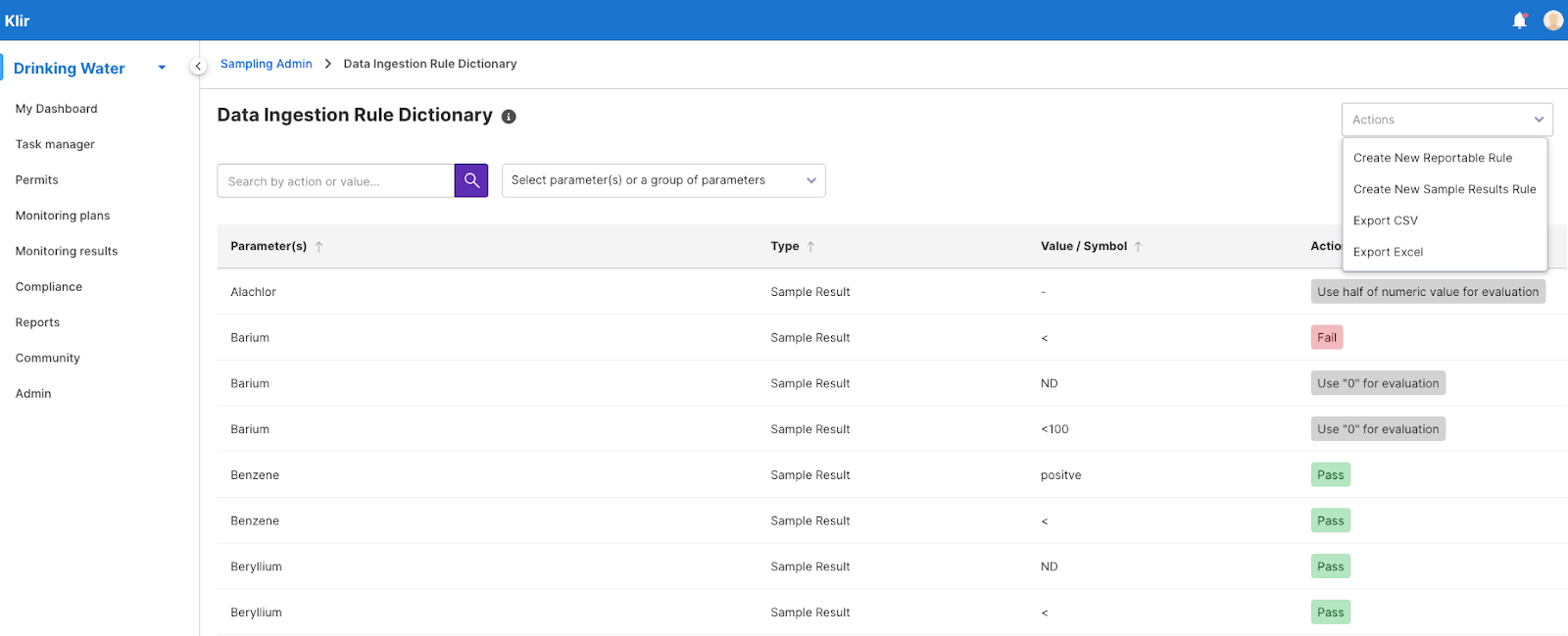
The Data Ingestion Rule Dictionary interface has been enhanced for improved usability and functionality.
Main Page Improvements
The list view now includes the following columns:
- Type
- Parameter / Group of Parameters
- Result Value
- Action
Search and Actions
- A Search Parameter dropdown allows users to search by Parameter, Value, or Action.
- Users can perform the following actions directly from the page:
- Create new Reportable rules
- Create new Sample Result rules
- Export rules
New Sample Result Rule Logic
A new and more flexible logic has been introduced for creating Sample Result rules.
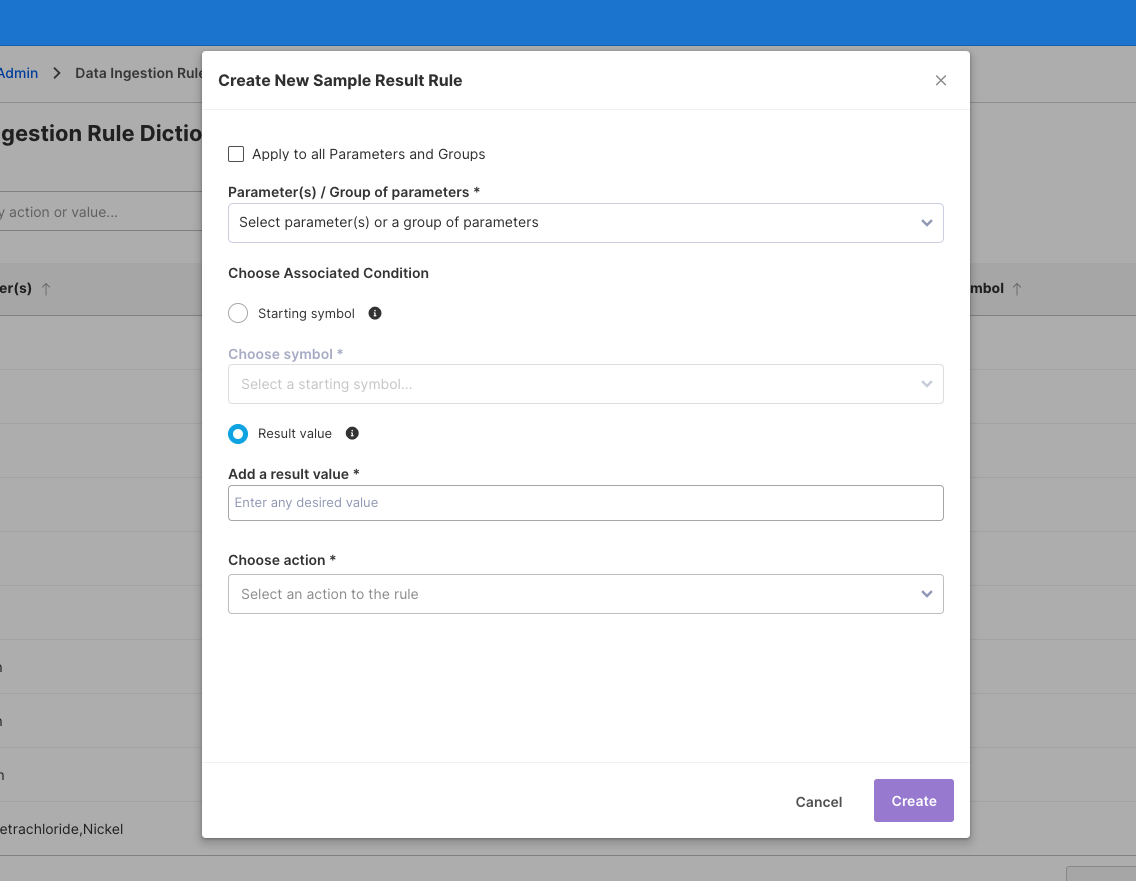
To create a rule, select “Add new Sample Result rule” from the Actions dropdown. The following fields are available:
Apply to All Parameters and Groups
- Checkbox: Apply to all Parameters and Groups
- When selected, the rule applies to all imported sample results that meet the rule condition.
- Individual parameter-level rules with the same condition will take precedence.
- Selecting this option disables the Parameters dropdown to prevent conflicts.
Parameter Selection
- Choose Parameter / Group of Parameters (mandatory, multi-select)
- Displays the full list of available parameters and parameter groups in Klir.
Associated Condition
Users can define one of the following condition types (only one can be selected):
Result Value
- Result Value field: Free text, up to 20 characters
- Supports multiple non-numeric values (e.g., ND, Absent)
Starting Symbol
- Choose symbol dropdown: Mandatory, single-select
- Supported symbols:
- <, <<, >, >>, -
- Used to define rules for non-numeric values that start with specific symbols.
Action Selection
- Choose Action (mandatory, single-select)
Available actions include:
- Ignore the value, use ‘0’ for evaluation
Sets the evaluation value to 0 and records it accordingly. - Ignore the value, use ‘1’ for evaluation
Sets the evaluation value to 1 and records it accordingly. - Fail
Marks the record as failed during evaluation. - Pass
Marks the record as passed during evaluation. - Ignore the symbol at the start, use the numeric value for evaluation
(Available only when “Starting symbol” is selected)
Uses the numeric portion of the value and records it in the ResultNumeric column. - Ignore the symbol at the start, use half of the numeric value for evaluation
(Available only when “Starting symbol” is selected)
Uses half of the numeric portion of the value for evaluation.
Duplicate Rule Prevention
If a rule already exists with the same Parameter and Result Value, the system displays a warning banner and prevents the creation of duplicate rules.
Reportable Rule Enhancements
The creation and management of Reportable rules has been improved with an updated user interface.
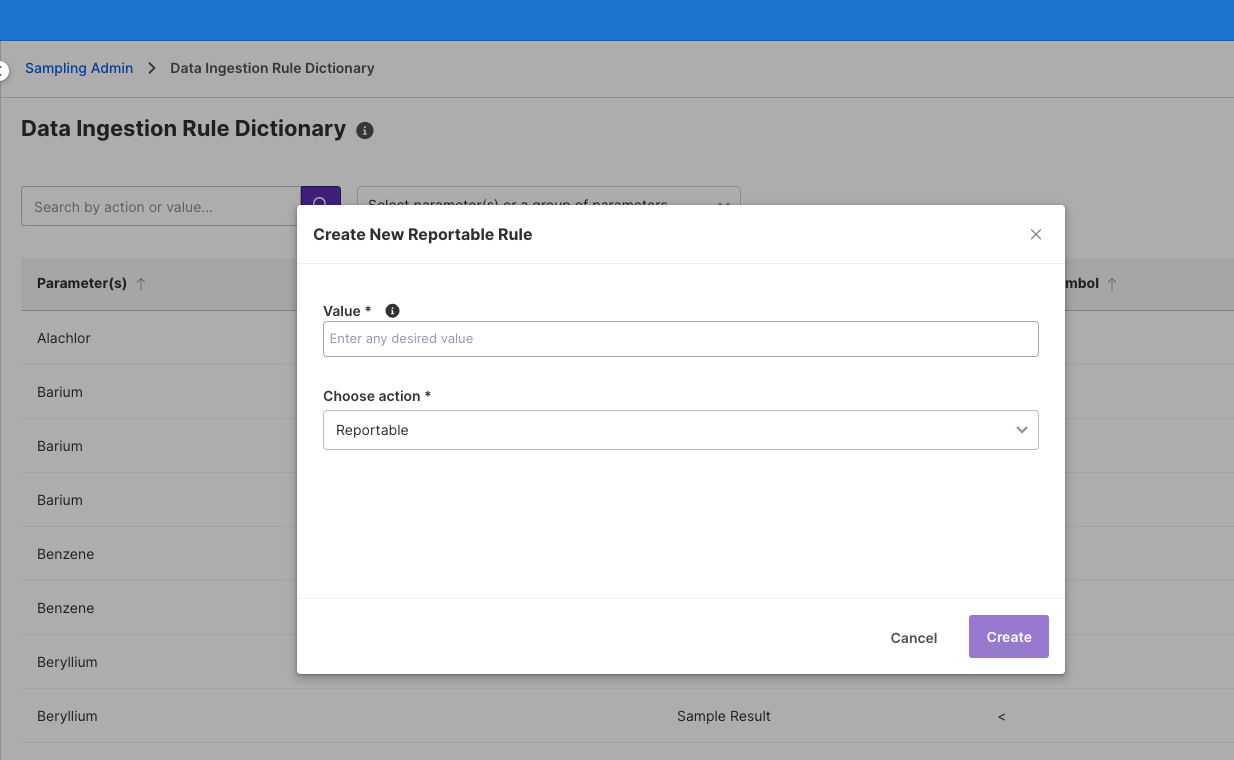
To create a rule, select “Add new Reportable rule” from the Actions dropdown. The Create New Reportable page includes:
Value
- Free text field (mandatory)
- Maximum length: 20 characters
Choose Action
- Mandatory single-select dropdown with the following options:
- Reportable (default)
- Not Reportable
Rule Behavior
- Reportable:
The value is included and available for reporting. - Not Reportable:
The value is excluded from reports and will not appear in report outputs.
These enhancements provide a clear and straightforward way to control report inclusion directly within the Data Ingestion Rule Dictionary.
Summary
The relocation and enhancements to the Data Ingestion Rule Dictionary improve accessibility, usability, and flexibility. With expanded rule logic, better permission control, and enhanced interfaces for Sample Result and Reportable rules, users can now manage non-numeric data ingestion more efficiently and accurately.